Step 1 - rename the archive ZIP file to something short, i.e. just a single letter. This is to reduce the full file path length, as some files in these archives go over the inbuilt path limit set by Windows, which is 260 characters
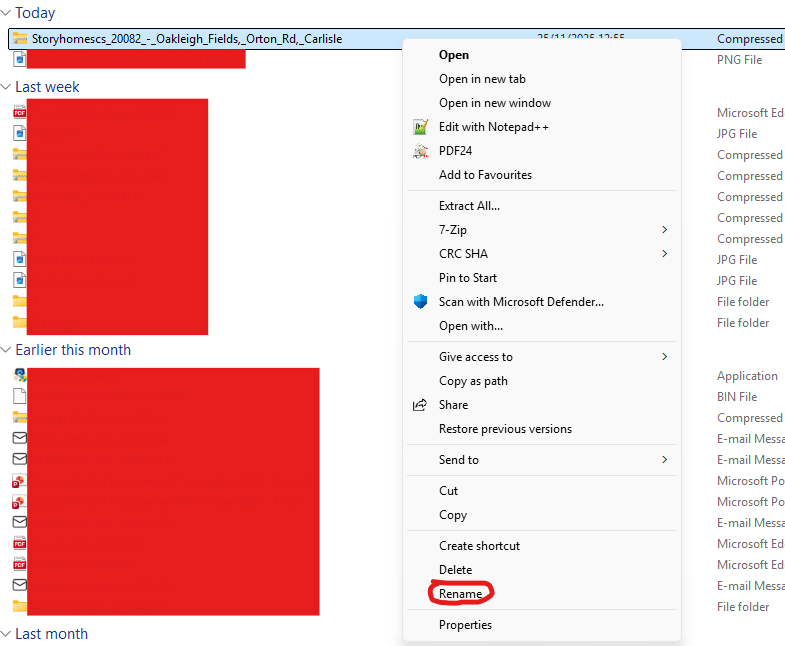
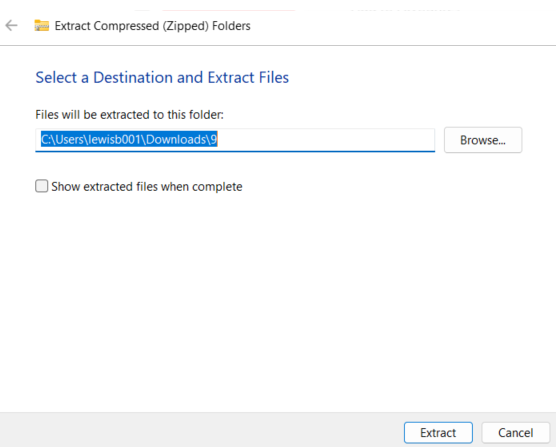
Step 2 - Rightclick on the file again --> Extract All... and then click Extract. This may take a minute or two
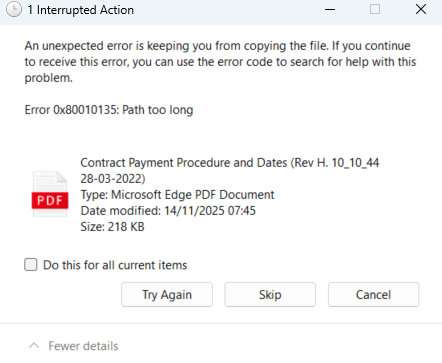
If you get some errors like this, it means the selected file(s) could not be extracted as the full file path length is still too large, as shown directly after the error code
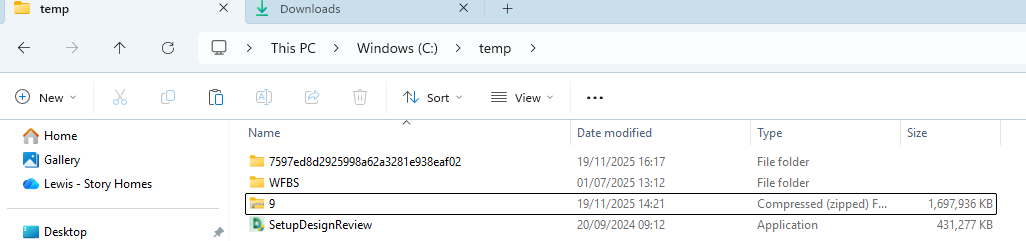
If you get this, you will need to move this ZIP archive from your downloads into a different folder on your laptop, one that allows for the full file path length to be shortened even more. You can do that by right clicking the ZIP file you just renamed and copying it. In the bar at the top of your file explorer, type C:\temp and then paste the file into this location, then click Extract All... once again and then Extract to the same location. Then proceed with Step 3

Step 3 - Once all the files from within the ZIP have been extracted, click into the folder. For example, I renamed the archive '20045_-_Whins_View,_High_Harrington' as '9' and then when I clicked into this folder, the next folder down was still titled the same as the previous folder was
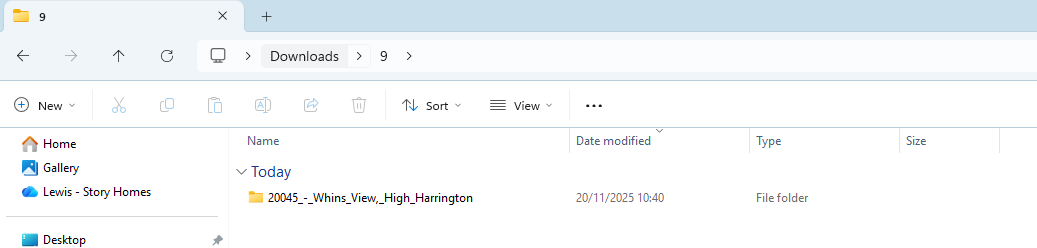
Step 4 - Click into this folder again to get the folders below this
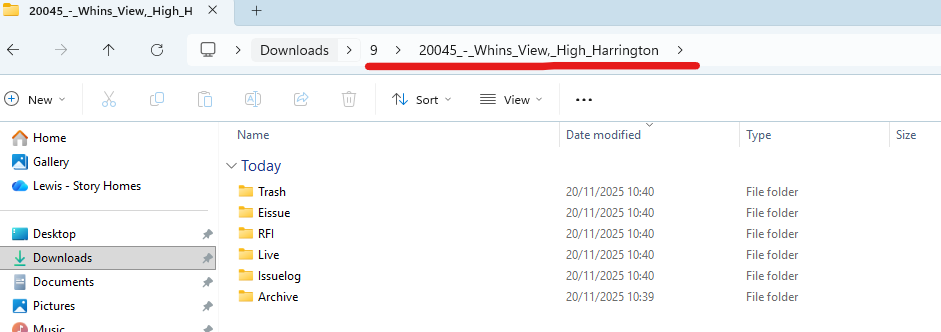
These folders are what will need uploaded to SharePoint
Step 5 - Create the archive folder in SharePoint in the same format as the others i.e. for this, it would be '20045 High Harrington Phase 2 DocH Files'
Step 6 - Highlight all the folder from Step 4 and then drag them into the SharePoint folder you just created
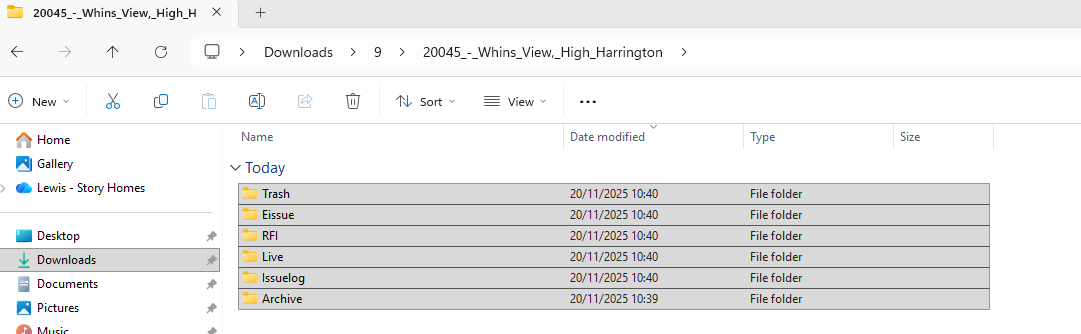
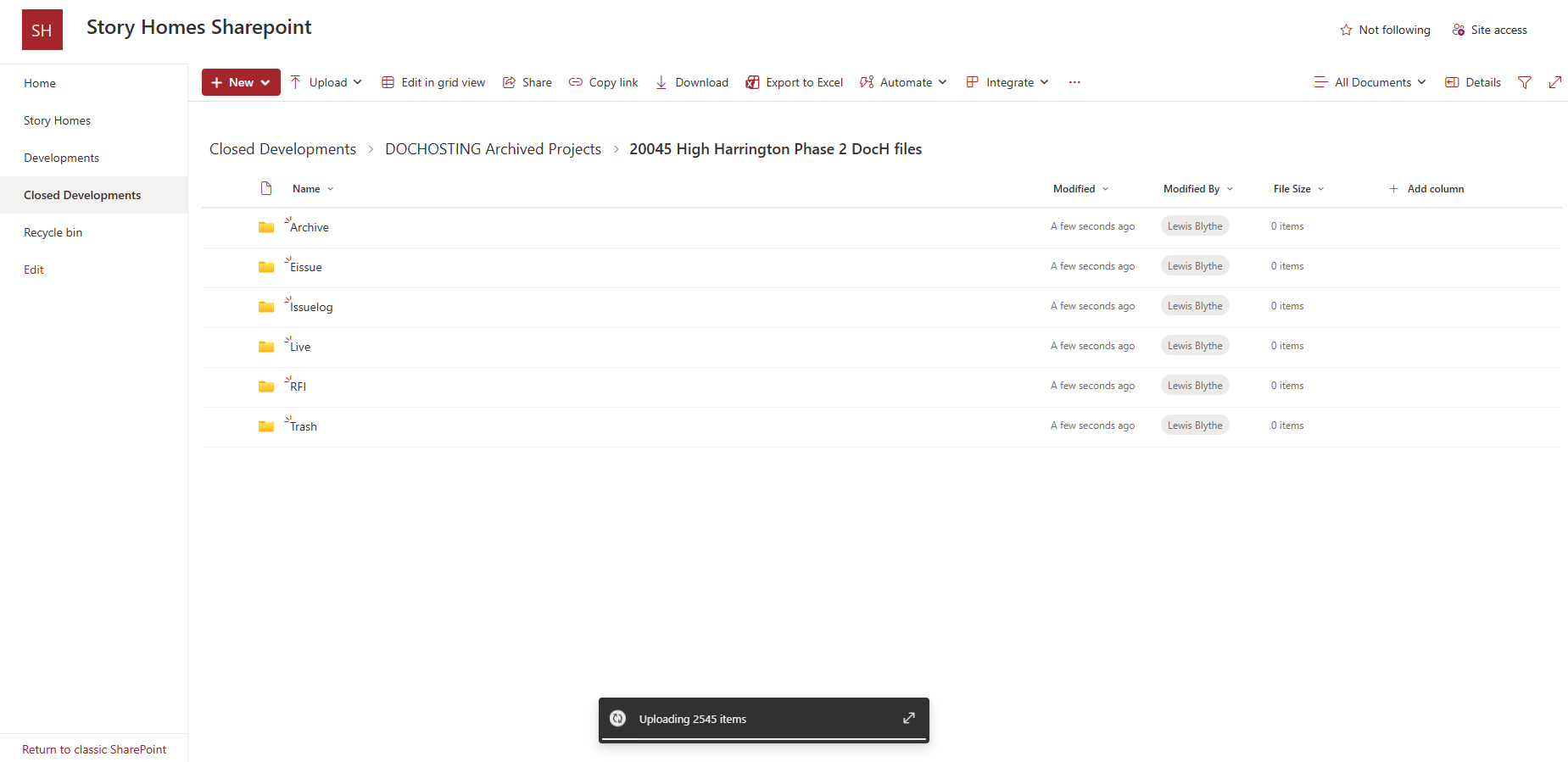
Wait a few minutes and then all the folders from the archive will be uploaded
Any issues please contact IT Support
Was this article helpful?
That’s Great!
Thank you for your feedback
Sorry! We couldn't be helpful
Thank you for your feedback
Feedback sent
We appreciate your effort and will try to fix the article