Initial setup
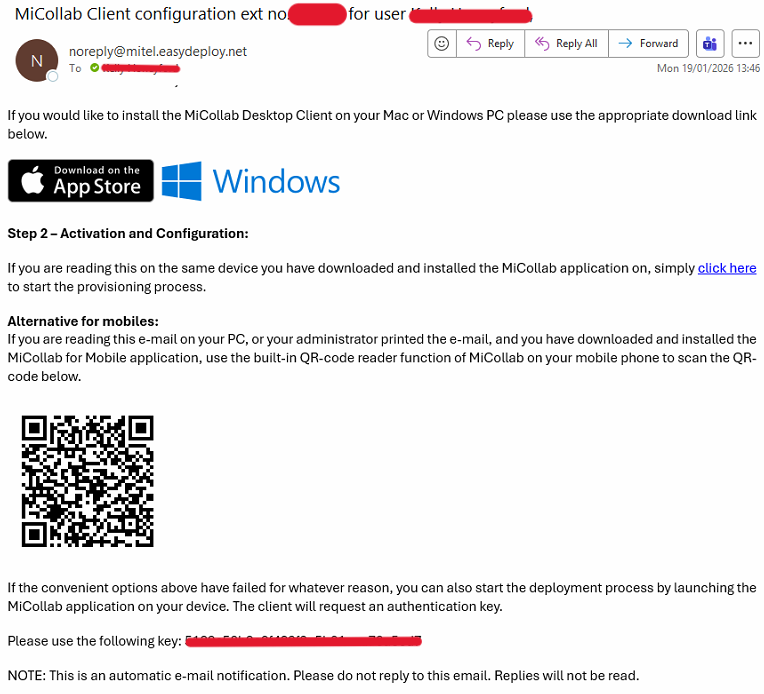
As part of the setup works for your softphone, you will have received some emails from noreply@mitel.easydeploy.net that look like the below. The email with your extension number + the * symbol in the subject (rather than 'none') is the important one, as it is required to initially setup your Micollab softphone application for taking calls on your laptop
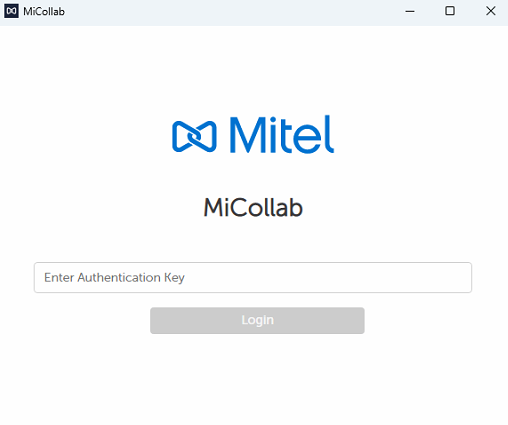
The first step is to open up the Micollab app and accept the T&Cs. You'll then be presented with a text box asking for an Authentication Key
Paste the authentication key present in the email and click Login. At this point, it may also ask you for a password. This password is just the pin you use to log into the deskphone
After this you should be logged on. If you click on the icon of your name in the top right, you should see the softphone slider set to on.
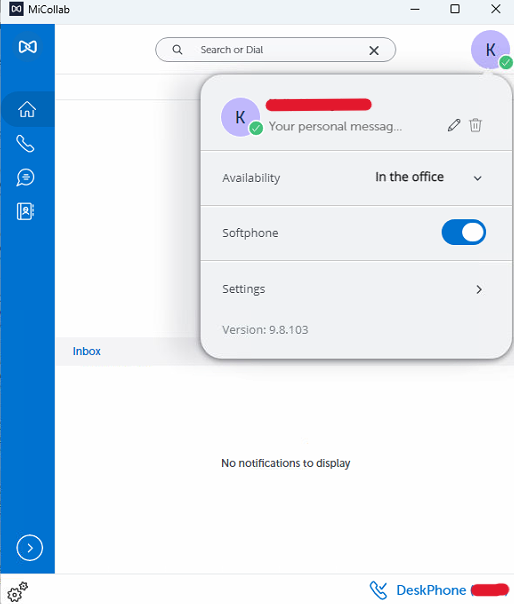
Note - If you see something like the below with the Softphone slider disabled, it means there has been a setup problem. Please contact IT support in the usual way if this is the case

Using the Micollab desktop app
When at home, you'll need the Softphone slider set to on and you'll need Availability (directly above) set to 'Working from home'. This will notify our phone system that incoming calls should be routed to the laptop. When the workday is over and it's time to log out of the softphone, just turn the Softphone slider back to the off position and set Availability back to 'In the office'
When you return to the office, simply log into your desk phone as normal and you should then begin receiving calls again just on this and not on the laptop
Was this article helpful?
That’s Great!
Thank you for your feedback
Sorry! We couldn't be helpful
Thank you for your feedback
Feedback sent
We appreciate your effort and will try to fix the article