Outlook allows you to share specific folders within your mailbox with other users, and allows you to precisely configure levels of access. This is useful if you want to i.e. share a subfolder within your inbox, but you don't want others to see the contents of your inbox
You will need to share the full path to a folder in order for others to see it. For example if I wanted to share folder '123' in my inbox, I would need to share my mailbox and then my inbox and then the subfolder. However even though I've shared 3 items, I can set permissions so that they can only view the contents of the subfolder
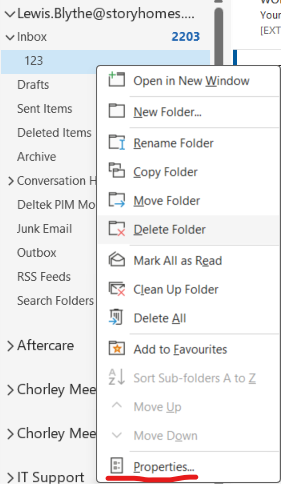
In the navigation pane on the left side of Outlook, locate the folder you want to share. Right-click on the folder you want to share. From the context menu, select 'Properties'
Change the tab to 'Permissions' and then click on the 'Add...' button to find a user whom you would like to share the folder with. Once selected, click Add and then OK, and repeat for anyone else you'd like to share this with
After adding users, you can customize their permissions. If you're not sure what level of access to provide users with, the permission level 'Reviewer' is recommended as it will allow read but no write access. Make sure that the tickbox 'Folder visible' is also ticked so they can actually see the folder
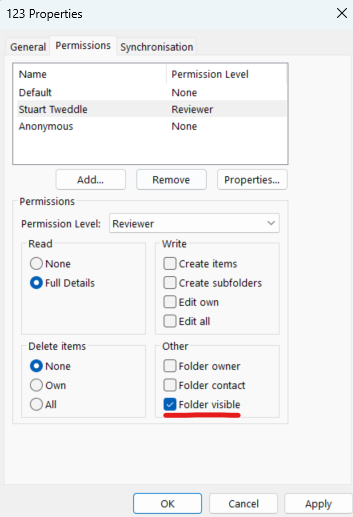
Click Apply then OK again and the permission will be set. You will have to do this for each user you have shared the folder with.
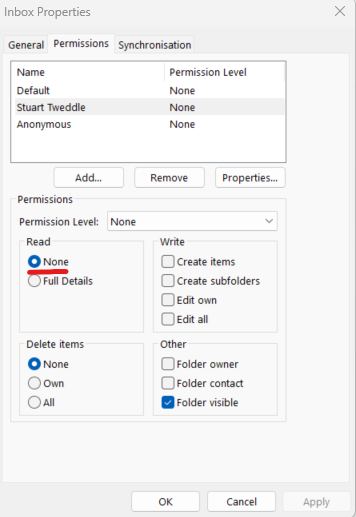
You will also need to repeat this process for your mailbox and then inbox. In my example, the user can see the path to the subfolder '123' but not see anything else within my mailbox. Below is what the permissions would look like for my mailbox, note the 'None' permission in the Read section
Was this article helpful?
That’s Great!
Thank you for your feedback
Sorry! We couldn't be helpful
Thank you for your feedback
Feedback sent
We appreciate your effort and will try to fix the article