When trying to send something to the plotter, you may see several options being greyed out in the 'Printer Properties' menu when going to print something. Most prominently the Document Size & Orientation
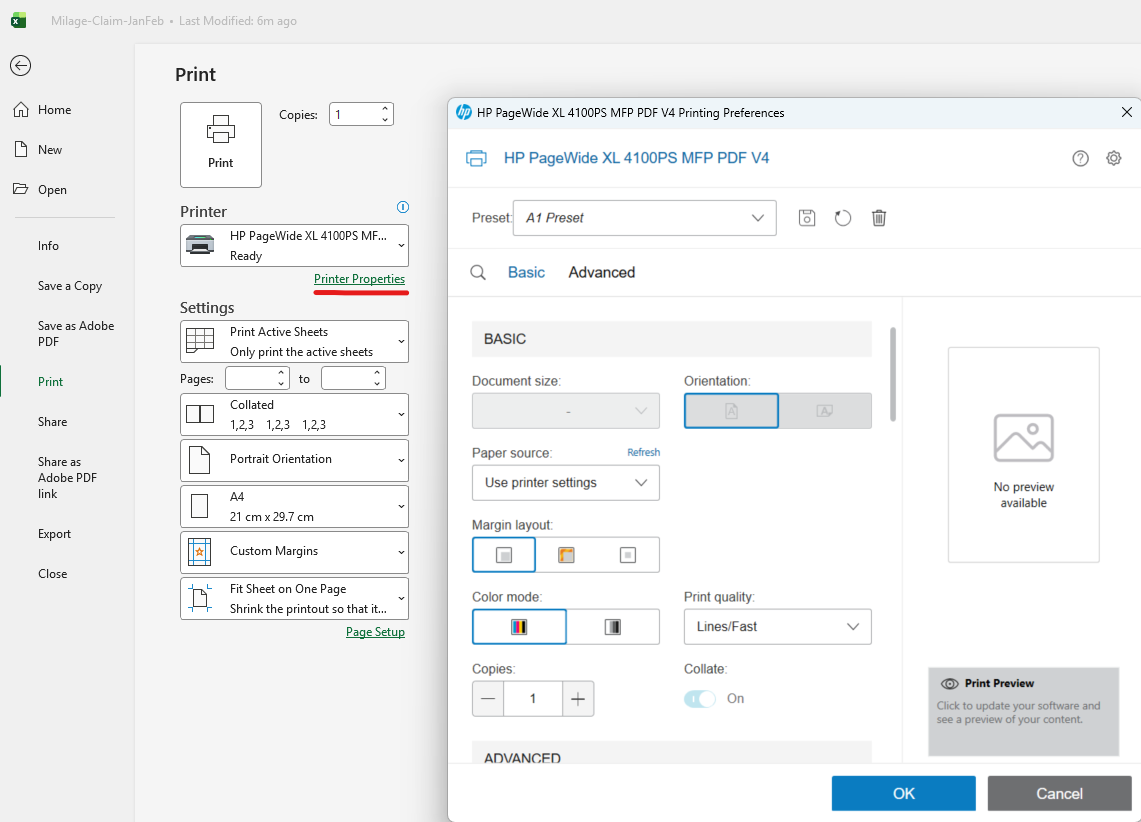
This is by design, as many applications now (Office Apps, Adobe Acrobat, Foxit) now override these settings. In the above screenshot, all of the greyed out settings in the 'Printer Properties' are within Excel's own print settings. This will result in having to change the print settings every time you send something to the plotter
To prevent this from happening, you can use pre-sets. Pre-sets can be created & modified by following the below
Settings --> Bluetooth & devices --> Printers & Scanners --> (Plotter Name) --> Printing preferences
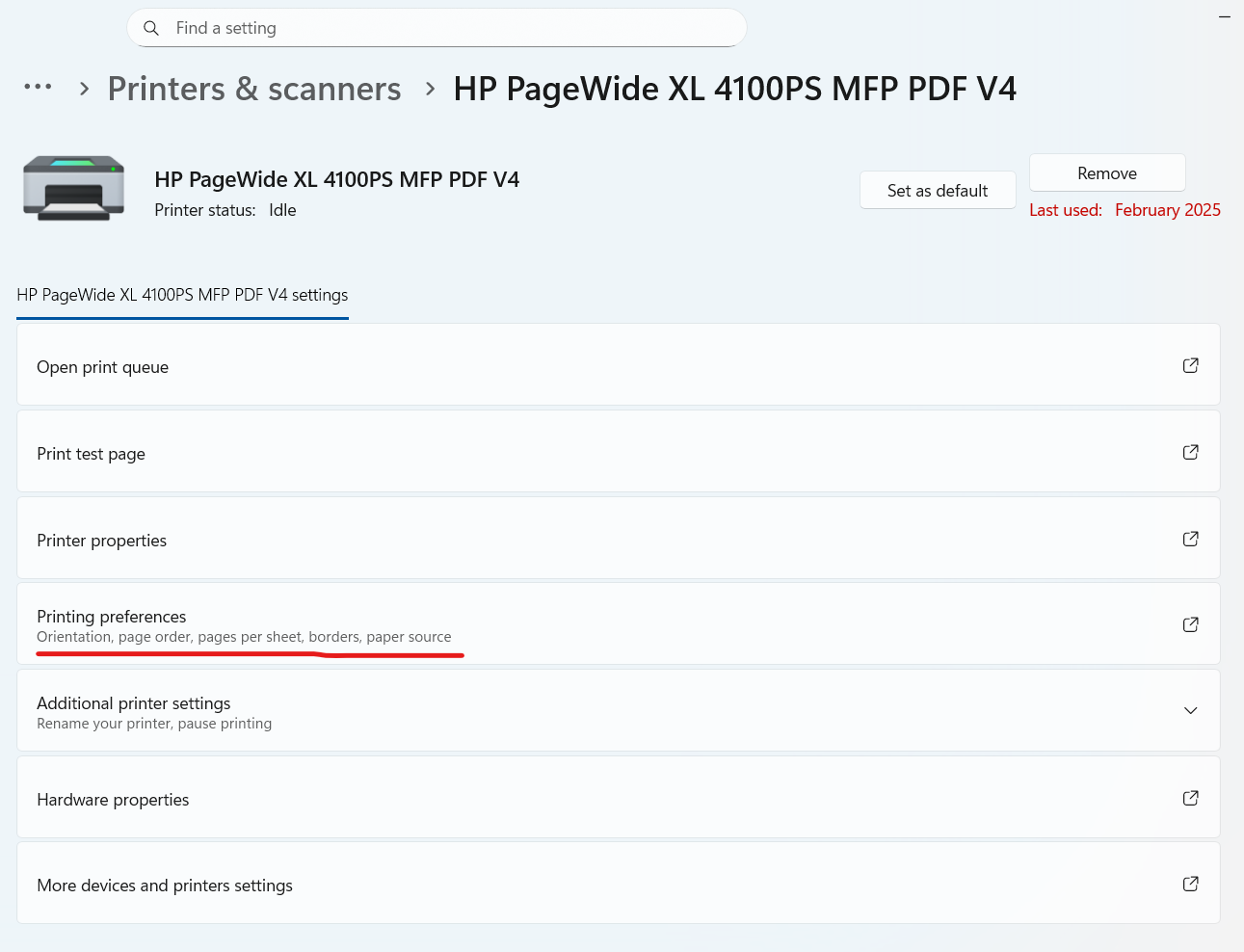
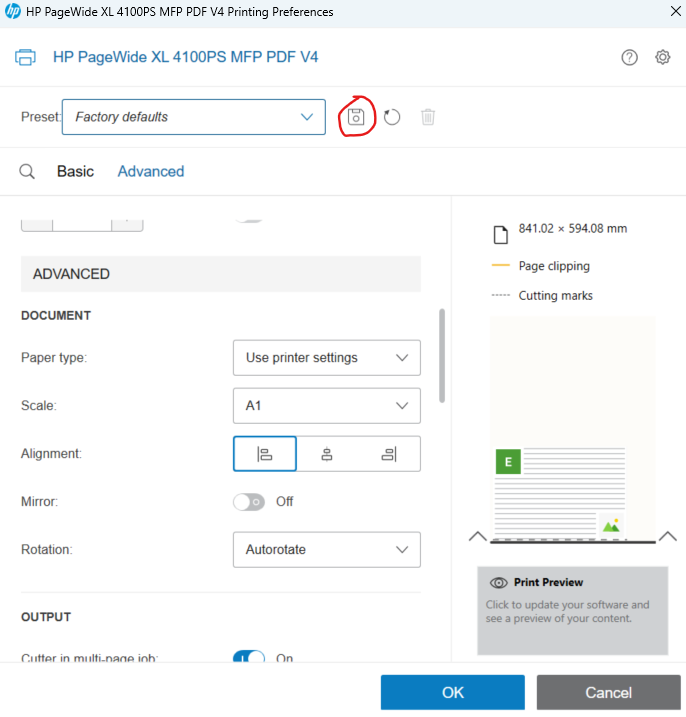
You will notice that the Printing Preferences window will open again, and this time all fields can be edited. As an example, I'll create a pre-set to print a document in A1. Change the available options to the below
Document Size --> A1
Orientation --> Landscape
Scale --> A1
Then, click on the Save icon to save the pre-set. Give it a name
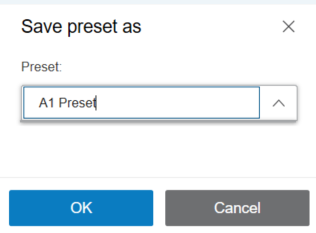
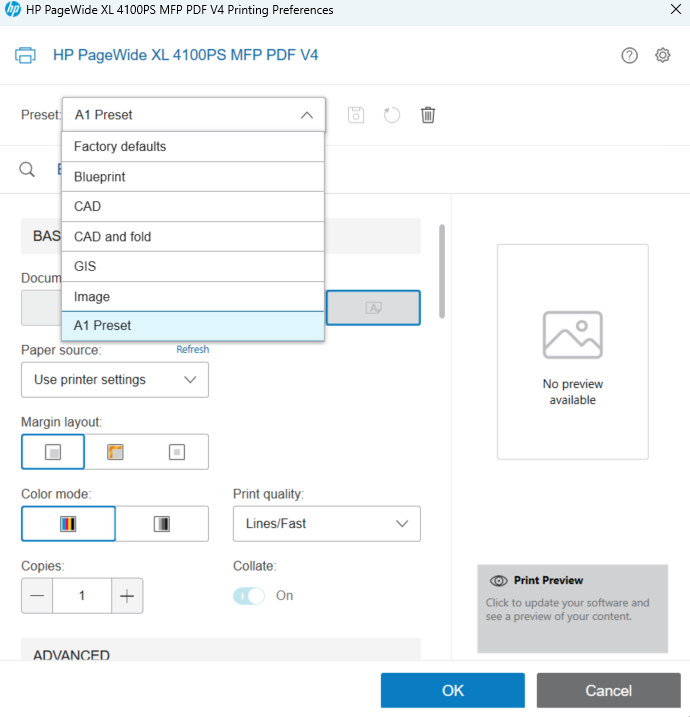
Click OK and then OK again to save changes. At this point, you'd be able to open the application that you're using to print again and then visit 'Printer Properties' again. This time, you'll be able to select the 'Preset' dropdown menu, select the Pre-set you made earlier and click OK. This will tell the application the settings you want to use, and you'll be able to print
Was this article helpful?
That’s Great!
Thank you for your feedback
Sorry! We couldn't be helpful
Thank you for your feedback
Feedback sent
We appreciate your effort and will try to fix the article