1. Printing a Document
When printing from your laptop
- Select the printer SHAZPRINT02\PaperCut Secure Print from your list.
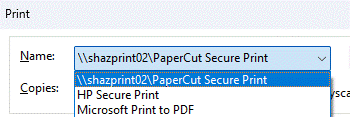
- You can adjust printing preferences as required (colour, single‑sided, paper size, etc.).
Press print as normal.
2. Releasing Your Print Jobs
When you go to the printer to release your documents:
- Tap your door access fob on the printer’s fob reader. The first time you do this, you’ll be asked to register it (details below).
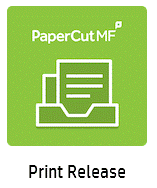
- Select Print Release on the screen.
- Your list of jobs will appear. Tap Select all jobs, then press Print.
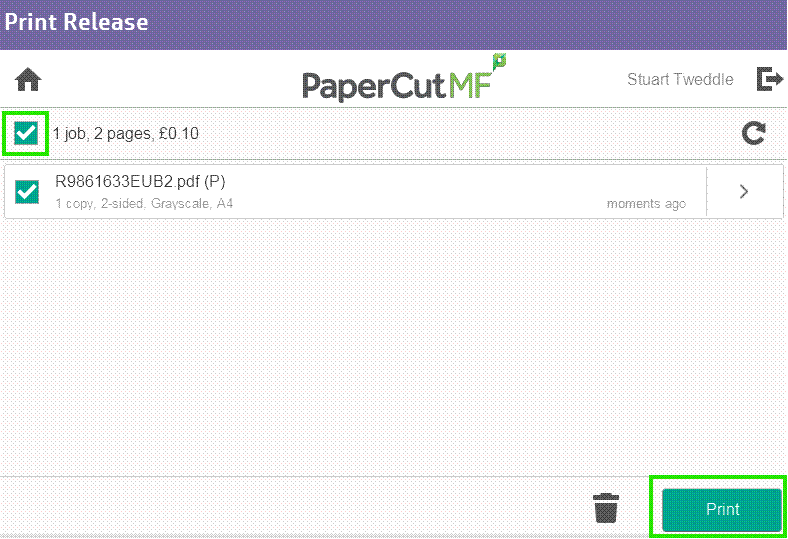
If you don’t have your fob with you, you can sign in using your email address and laptop password.
3. Registering Your Door Access Fob
(Required only once, automatically prompted the first time you scan your fob)
- Tap your fob on the printer's fob reader to sign in.
- Enter your email address and laptop password
(this must be your full password, not your Windows PIN).
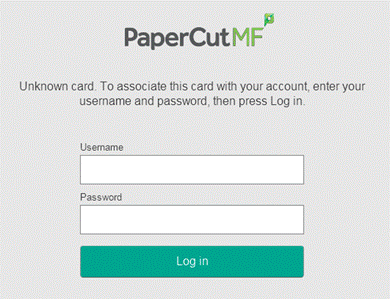
Once completed, your fob will be linked to your account for future use.
4. Scanning to Email
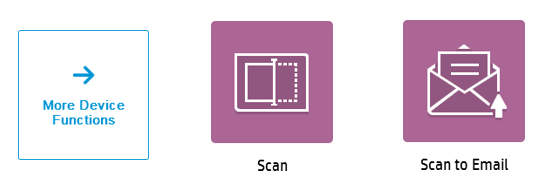
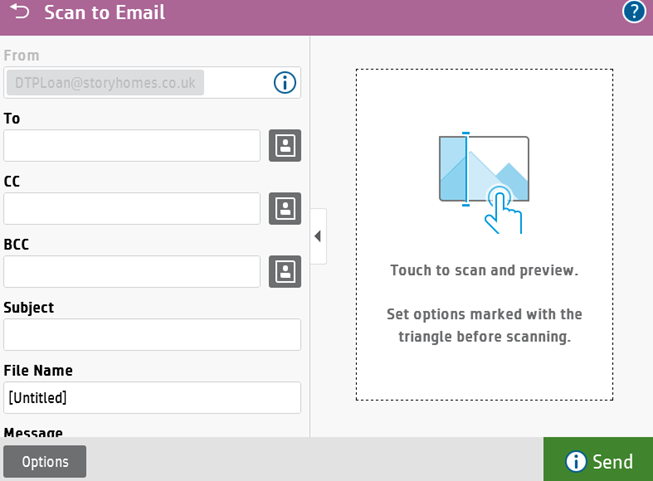
Sign in to the printer using your door access fob or email address and laptop password then click on the Scan option then click on Scan to Email.
From here it's the same as normal, fill in the To field, Subject and File name and press send.
Was this article helpful?
That’s Great!
Thank you for your feedback
Sorry! We couldn't be helpful
Thank you for your feedback
Feedback sent
We appreciate your effort and will try to fix the article