Printing when in the office is done via 'Papercut Secure Printer', which appears as a printer on your Printers & Scanners list. If you cannot see this, please contact us via the usual manner
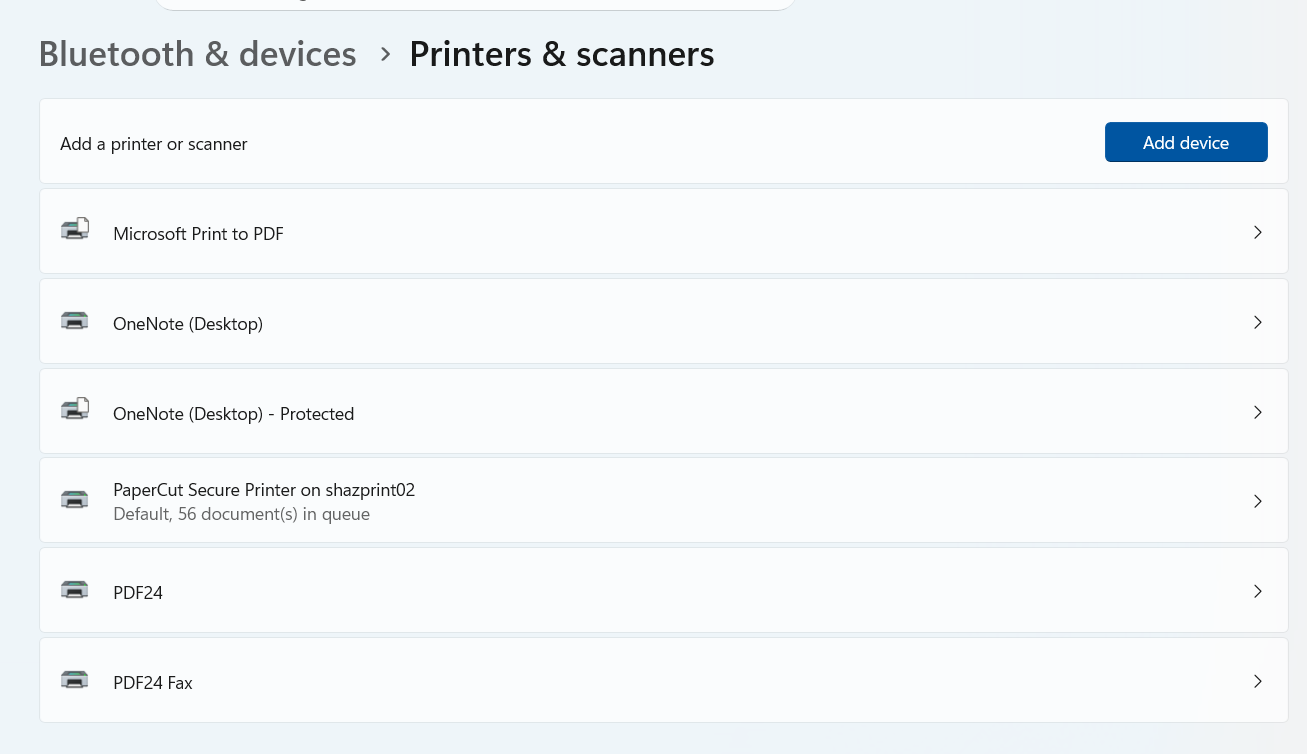
When you print out a document to the Papercut Secure Printer, it will be ready to release on all office printers.
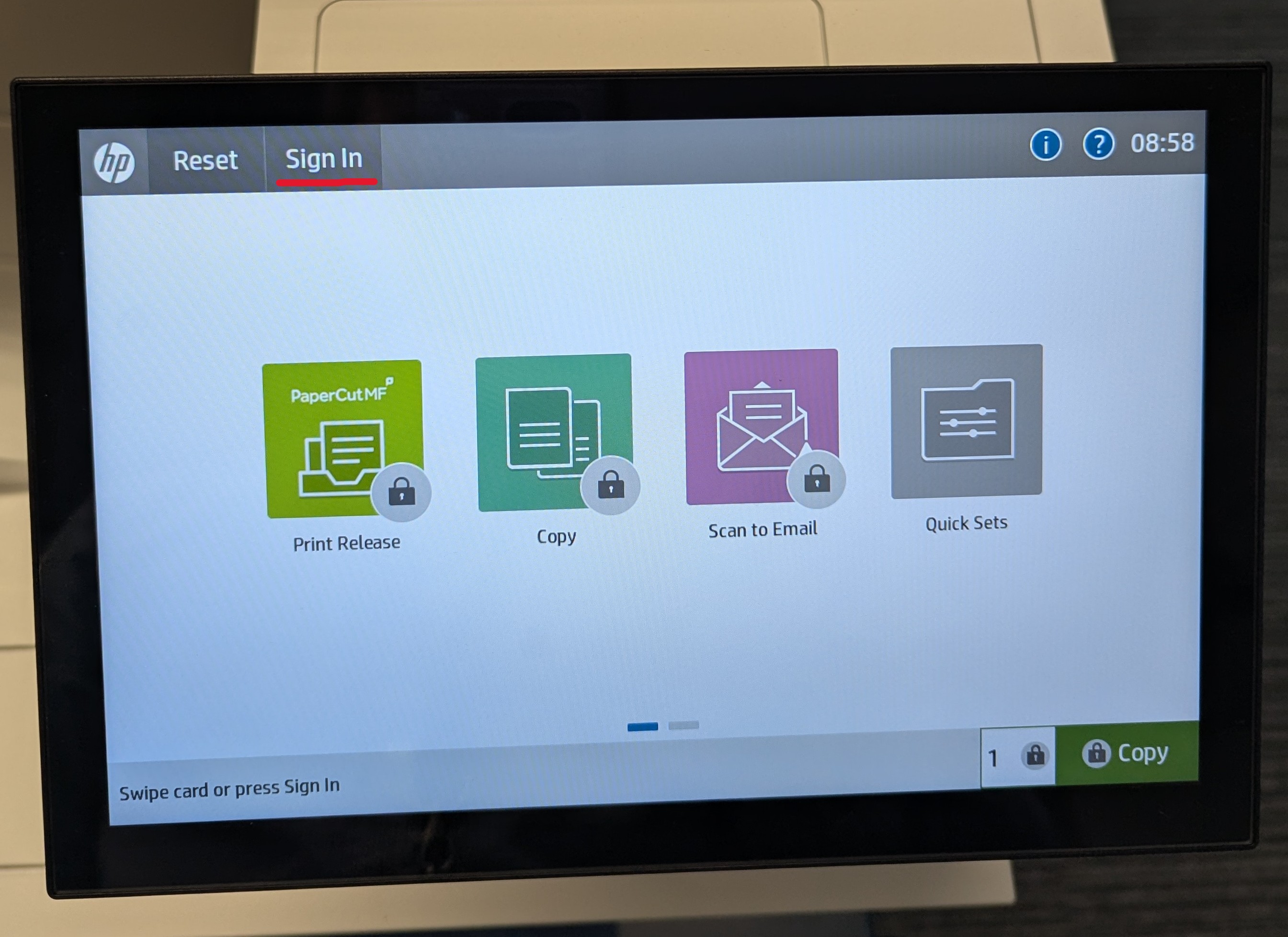
To release jobs from the printer, you will need to sign into one of the printers by either scanning your print fob on the reader or pressing the Sign In option and using your email address & laptop password
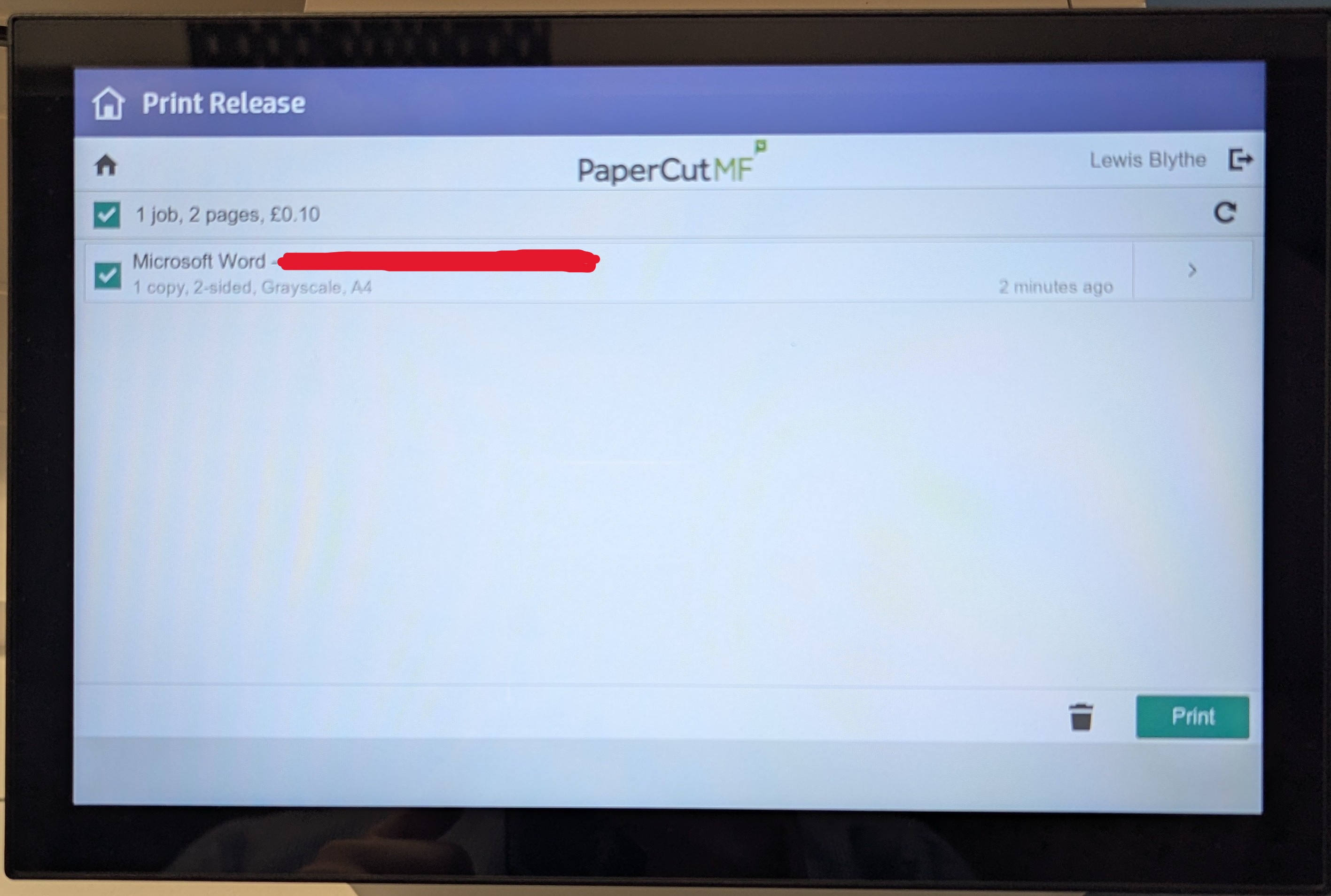
Once signed into, press the Print Release button and you'll see all the jobs in your print queue and then choose which ones you'd like to release just by tapping on them and pressing Print
Scan to email
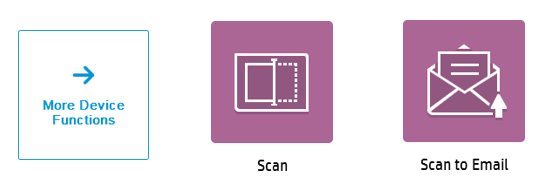
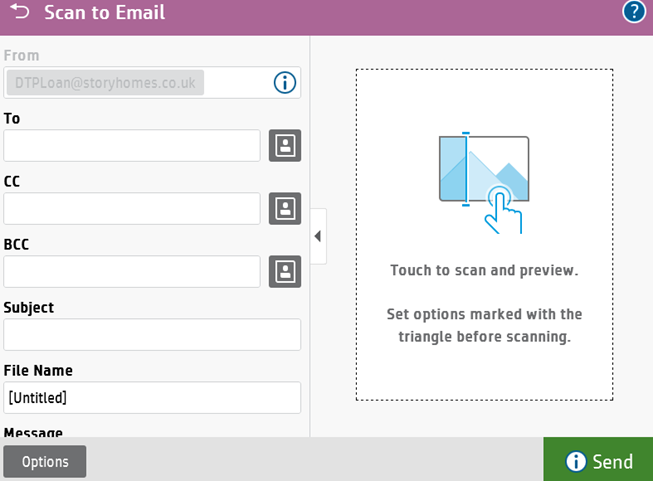
Once signed into one of the printers, click on the Scan option then click on Scan to Email.
From here it's the same as normal, fill in the To field, Subject and File name and press send.
Any issues with your access to the office printers please contact IT
Was this article helpful?
That’s Great!
Thank you for your feedback
Sorry! We couldn't be helpful
Thank you for your feedback
Feedback sent
We appreciate your effort and will try to fix the article