IMPORTANT - Our mail filter holds a comprehensive record of all emails to/from all staff going back to Jan 2018. Do not worry about needing to keep an email 'just in case' as we will hold this and be able to retrieve any email on request
To see your current mailbox storage, open File --> Mailbox Settings
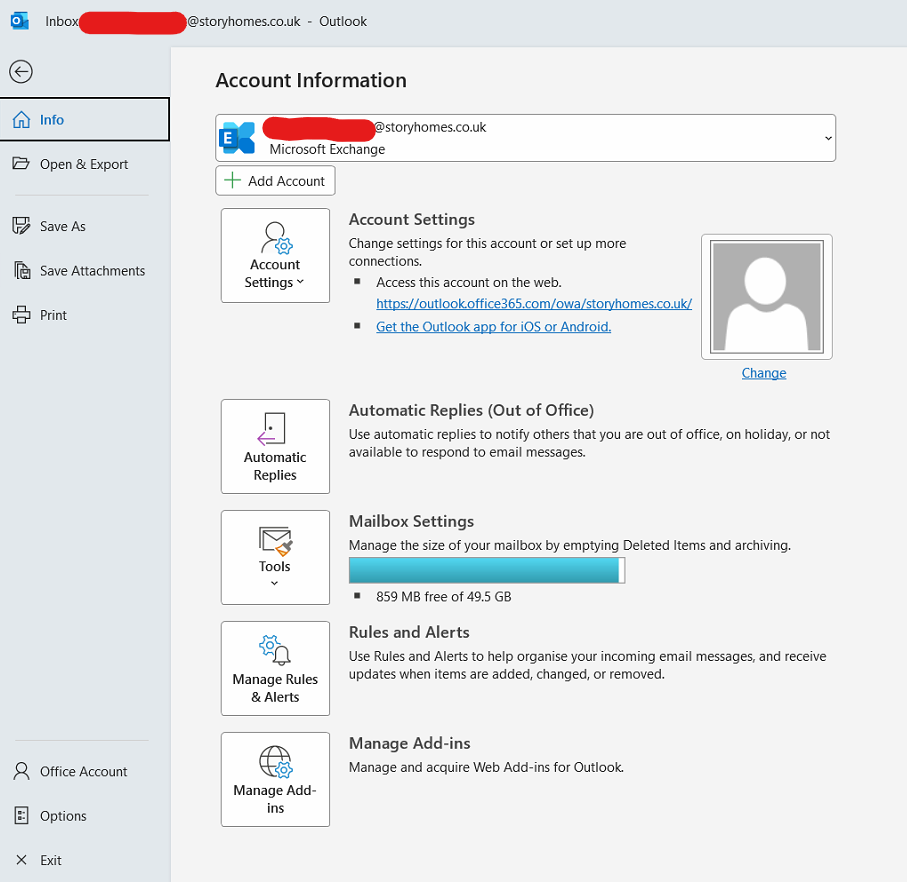
The simplest way of making available storage space quickly would be to delete larger emails
In the search bar, enter the below. This will search your inbox for any email which is larger than 5MB (inc attachments)
size:>5242880
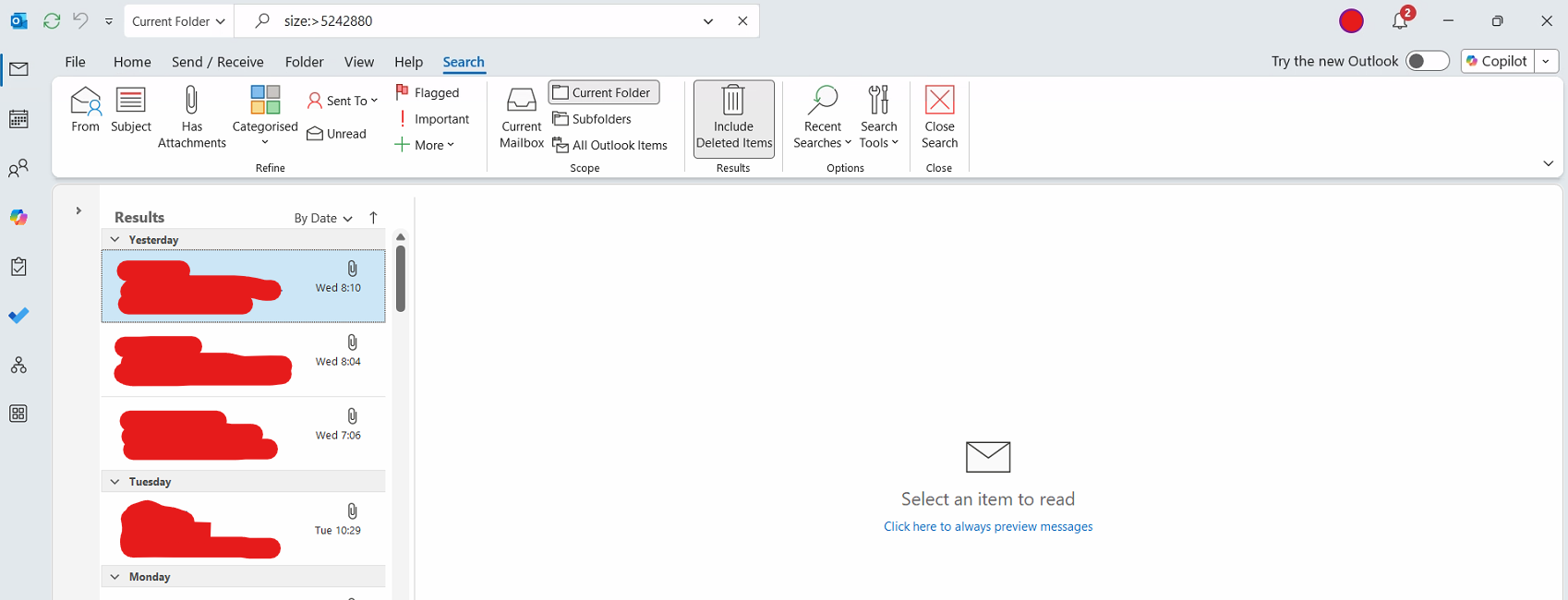
If you have multiple sub-folders within your inbox, you would need to change the dropdown next to the search bar from 'Current Folder' to 'Current Mailbox'. This will also search in Sent Items
To remove these emails, select one --> Ctrl + A --> Delete --> Then delete all items from the Deleted Items folder to get rid of them for good
You can also combine the 'size' filter with a time frame. For example, the below search criteria will find all emails larger than 5MB in the year 2022
(size:>5242880) AND (received:>=01/01/2022 AND received:<=31/12/2022)
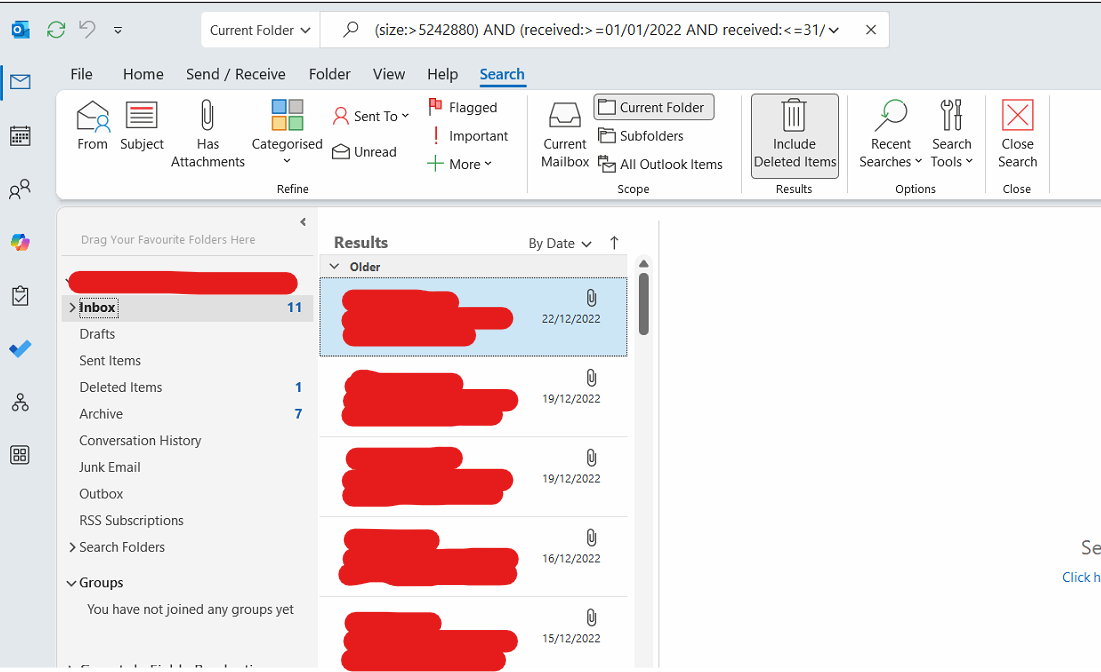
Again, you'd select one and then Ctrl + A to select all, click Delete and then once gone from your inbox you'd need to delete them from your Deleted Items folder
This process can take quite a while and be very resource intensive, so please be patient
If you're unsure of anything, please contact IT support in the usual manner
Was this article helpful?
That’s Great!
Thank you for your feedback
Sorry! We couldn't be helpful
Thank you for your feedback
Feedback sent
We appreciate your effort and will try to fix the article