Outlook allows you to share specific folders within your mailbox with other users without exposing your full mailbox. This is particularly useful if you want to i.e. share a subfolder within your inbox but not expose anything else
The first step is to log into Outlook on the web (OWA) using the below link
https://www.microsoft.com/en-us/microsoft-365/outlook/log-in
Once signed in, find the folder you want to share --> click the 3 dots on the right side --> Sharing and permissions
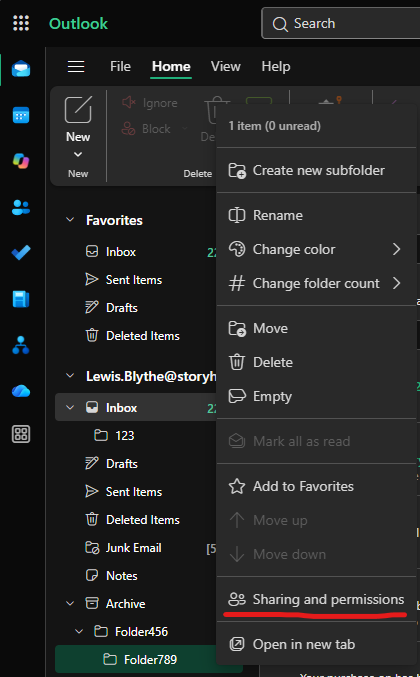
In my example, I want to share Folder789, which is a sub-folder within Folder456 which is subsequently a sub-folder within the Archive folder
Click on the '+' icon to add a user and repeat this for each user you would like to share this to. On each user, you can set a custom permission level for what they can actually do. If a user is only needing access to view emails here, it's recommended to change the permission level dropdown to 'Reviewer'
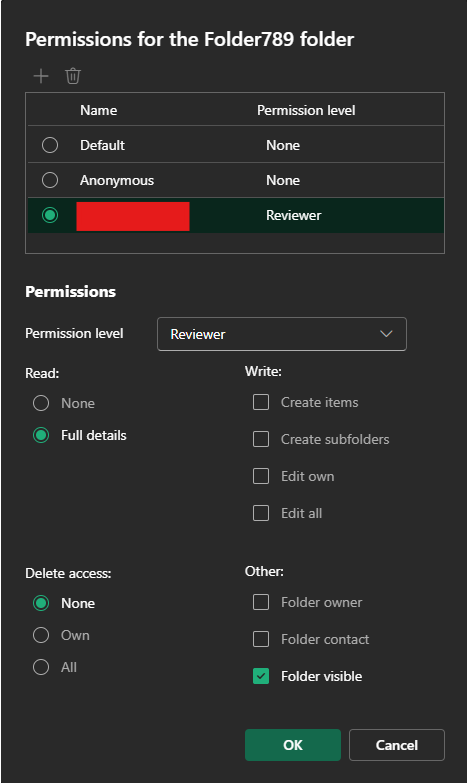
Once you are happy with this, click OK. You will then see the following popup, which explains that in order to see Folder789 Outlook needs to make the full path visible as well. Note that it says it is only to allow folder navigation, meaning the contents of the other folders will NOT be visible. Click allow access on this
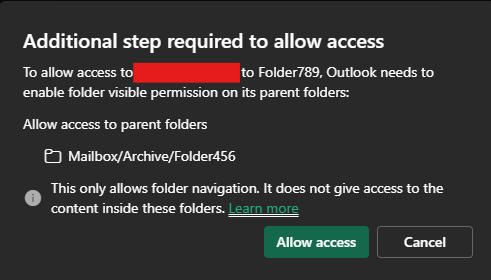
This should be all that is required to folder share. The recipient may still need to add your mailbox onto their Outlook as sometimes it does not drop automatically, the below guides should help in doing so
https://storyhomes.freshdesk.com/a/solutions/articles/42000071965 - Classic Outlook
https://storyhomes.freshdesk.com/a/solutions/articles/42000116066 - New Outlook
Was this article helpful?
That’s Great!
Thank you for your feedback
Sorry! We couldn't be helpful
Thank you for your feedback
Feedback sent
We appreciate your effort and will try to fix the article