To access Display settings, type 'display' into the search bar at the bottom and open the corresponding menu
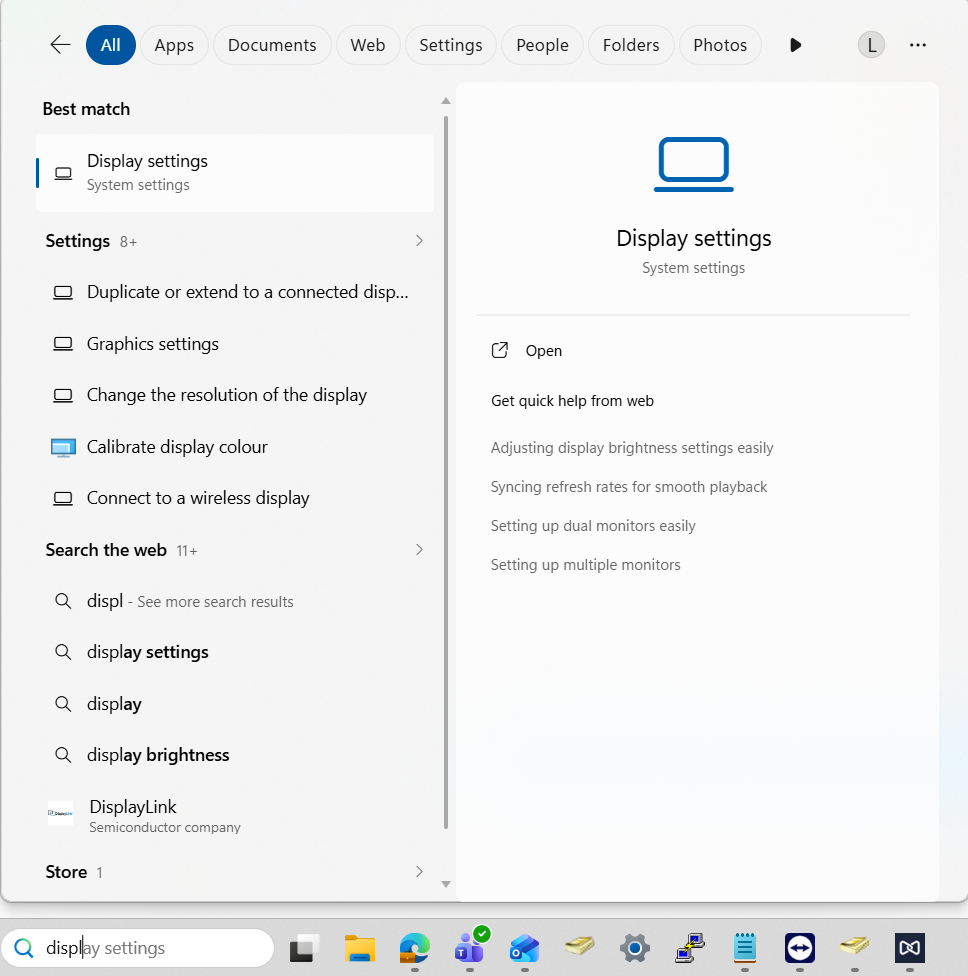
Here you can change the logical placement of the external monitors as well as change how Windows treats the displays. Click 'Identify' and you will see which screen corresponds to which number
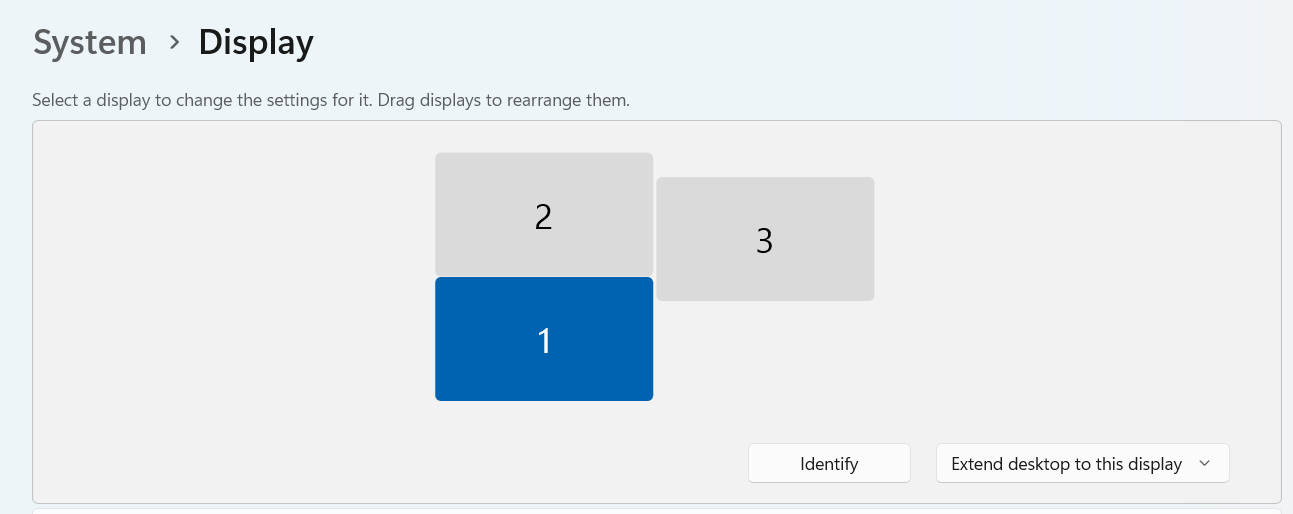
The display highlighted blue is the one you currently have selected - just click on other displays to select these instead
If you have 'Extend desktop to this display' selected on the dropdown menu, the selected display will act like an extension of your desktop and allow you to use it as an extra screen. If the 'Duplicate' option is selected instead, then the highlighted screen will be a copy of either of the other 2 displays
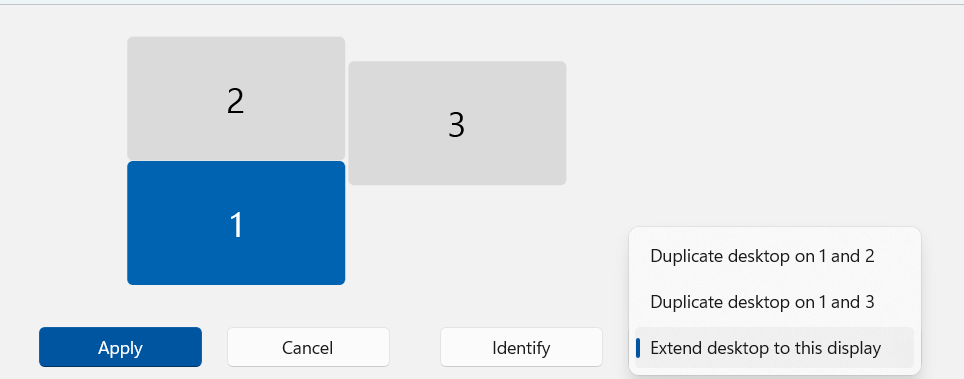
Once you've made a change, click 'Apply' to see how it would look. Windows gives you the option to revert any changes made if you are not happy
Was this article helpful?
That’s Great!
Thank you for your feedback
Sorry! We couldn't be helpful
Thank you for your feedback
Feedback sent
We appreciate your effort and will try to fix the article