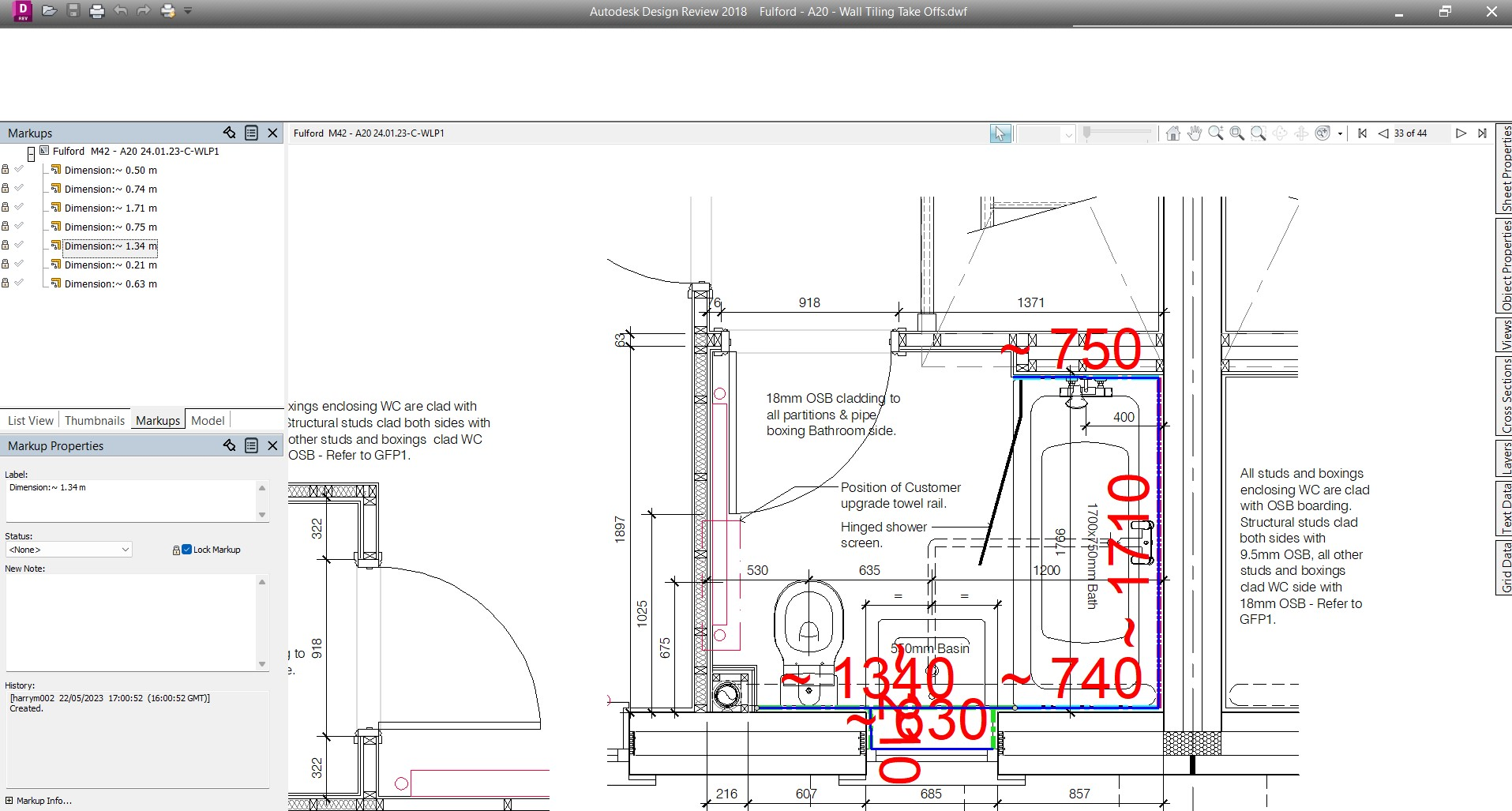
It's a well documented issue for Design Review that the toolbar goes completely white on many external monitors - this is to do with the scaling of the monitor
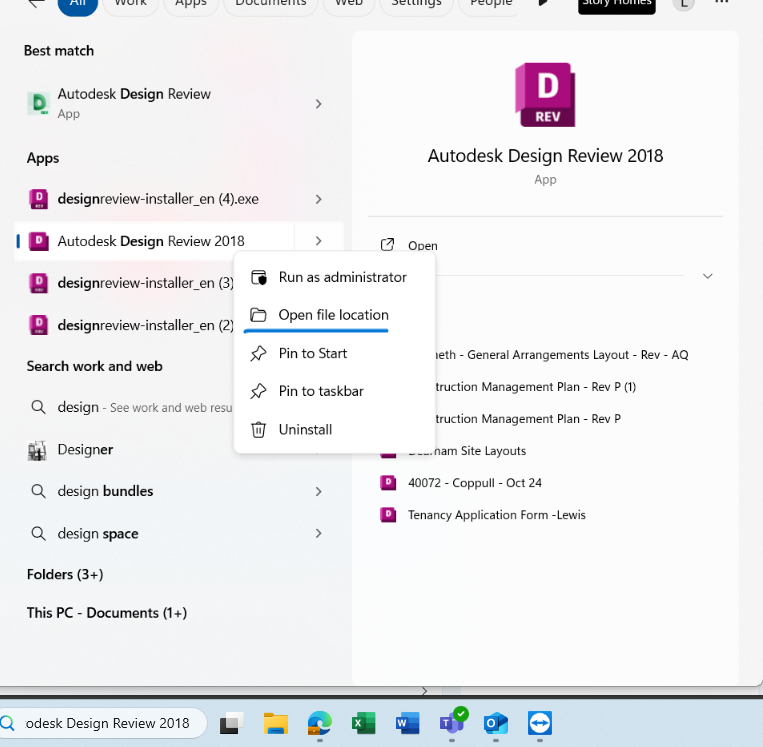
Open up Design Review in File Explorer and click Properties --> Compatibility
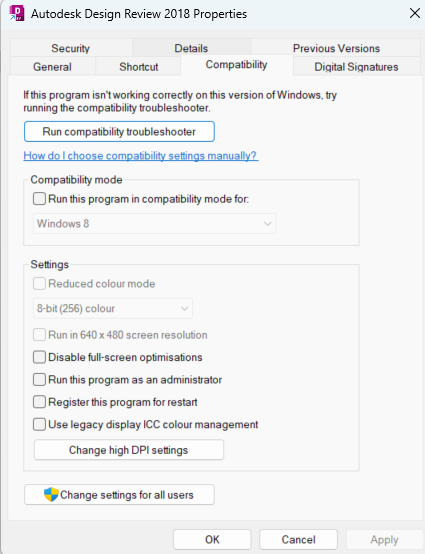
Then click on Change high DPI settings to get the next menu. Make sure it looks exactly like this
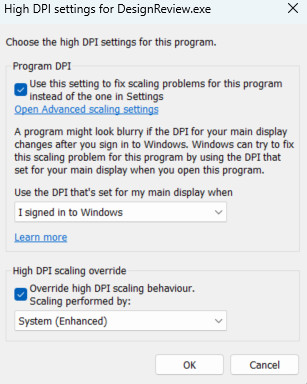
Click OK and then close properties. When you open Design Review you should then be able to snap this to an external monitor without changing anything about the monitor itself
OLD SOLUTION
Open display settings, select the monitor's scaling and then change it from 100% to 125%
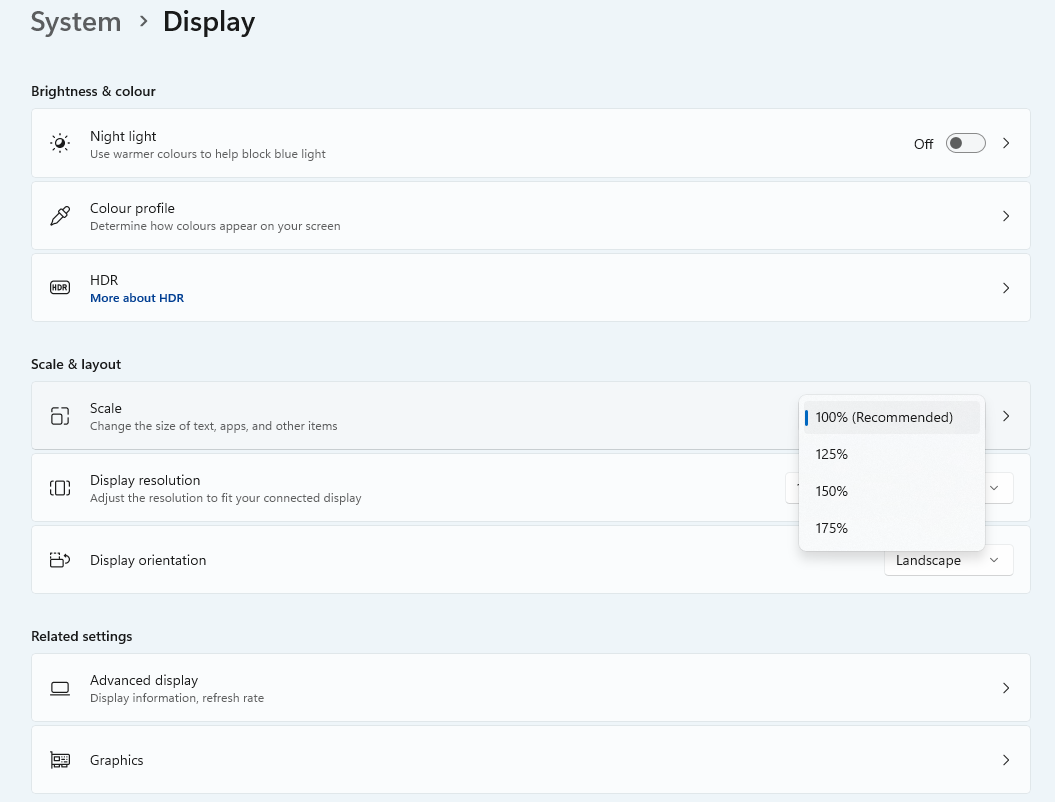
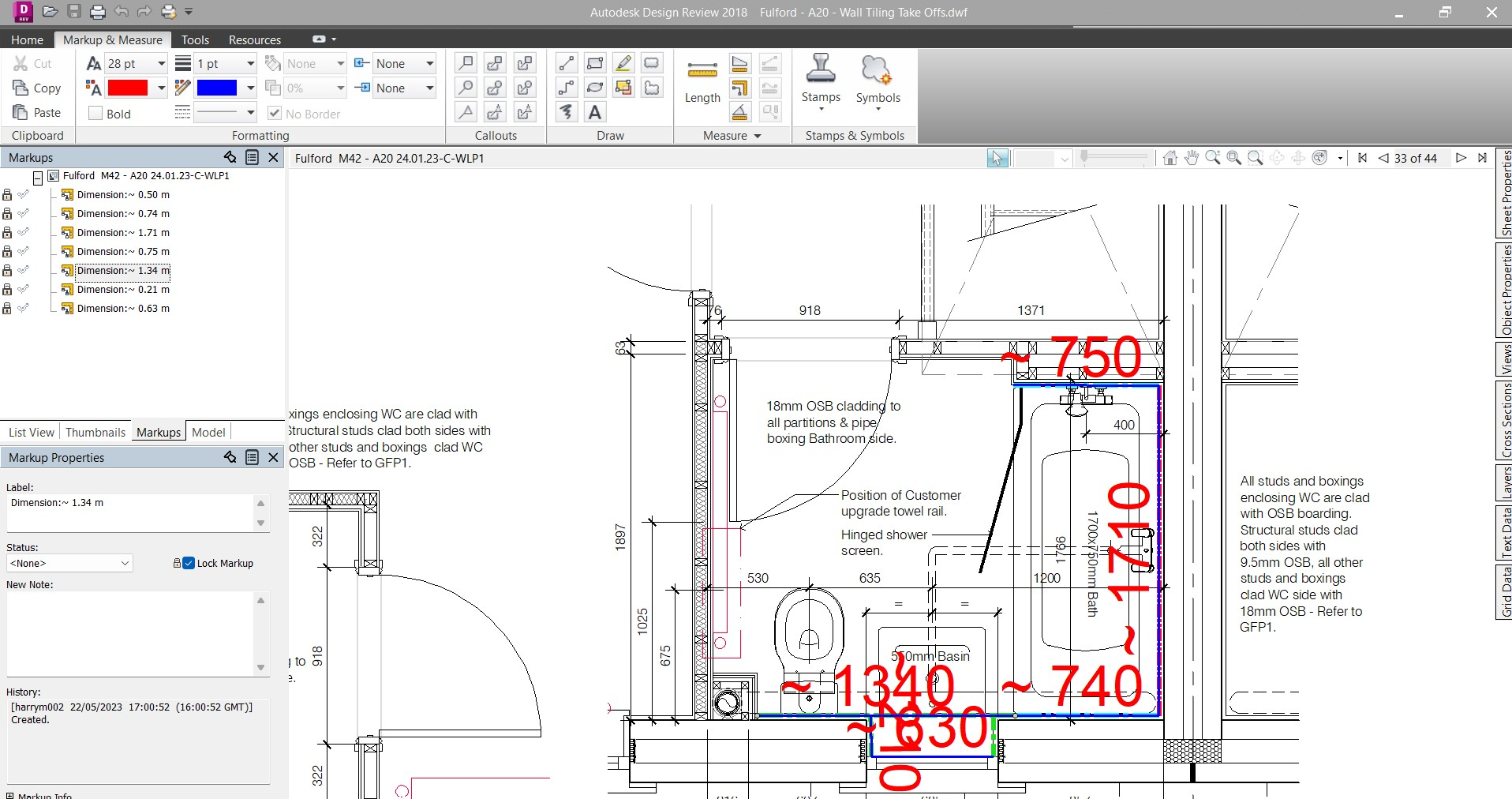
If you then wiggle the window and then snap it back onto the monitor borders the toolbar ribbon should then re-appear
Was this article helpful?
That’s Great!
Thank you for your feedback
Sorry! We couldn't be helpful
Thank you for your feedback
Feedback sent
We appreciate your effort and will try to fix the article