Follow these steps to complete setting up your laptop ready for use. Setup should take roughly 15 minutes.
First login to the laptop must be done in one of the main offices, you will not be able to log in if you are away from the office. If you get stuck at any point during this process, please give us a call or email itsupport@storyhomes.co.uk
Laptop registration.
Sign in to your laptop with your username/email address and password.
Once signed in and at the desktop, click on the Windows icon at the bottom and then go to settings. Go to Accounts on the left then click on Access Work or School.
Expand the storyhomes.local section, click on Info then scroll down and click Sync.
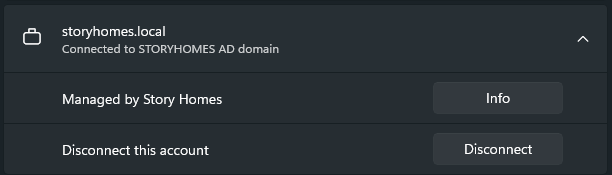
You will be get a log in prompt, sign in with your email address and password then complete the multifactor authentication process. Once signed in, the sync will complete in the background. You can close the Settings window.
Email access via Outlook.
Click on the Windows icon and Search for Outlook. You can use the classic version or the new one if you prefer the new style.
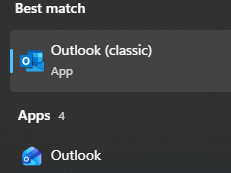 After clicking Outlook, the setup window will open up. Enter your email address if it's not already populated then click next and sign in if prompted.
Once signed in, untick the box to set up Outlook on your mobile and click finish. Outlook will open after a short while and will start downloading your emails. You can let this run in the background by leaving outlook open. It will take roughly 20 minutes depending on how many emails you have.
Your signatures should sync automatically. If they don't, you can create a new one by first copying your signature from an old sent email. Then, open a new email and click the Insert tab at the top, then click on Signature then click Signatures...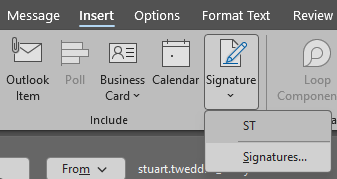
give your signature a title then paste in your signature and click OK.
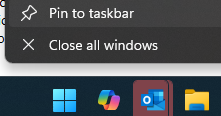
You can pin Outlook to the taskbar at the bottom by right clicking on Outlook then select "Pin to taskbar".
Microsoft Edge.
We now use Microsoft Edge as the default browser and you need to sign in to start syncing data from your account (bookmarks, stored passwords etc.).
Open Edge and you may be prompted to sign in. Enter your email address then click on "Sign in to sync data"
At the Google Chrome page, click on "Continue without data" then complete the next steps if there are any.
Once signed in, your saved bookmarks should sync after a few minutes (you may have to restart Edge for them to appear).
OneDrive
To gain access to your files in your Documents folder and on your Desktop, click on the Windows icon and search for OneDrive then open the one drive app.
Your email address should already be populated then follow the steps on the screen. When you get to the backup option. Make sure that Desktop, Documents and Pictures are selected then click on Start backup.
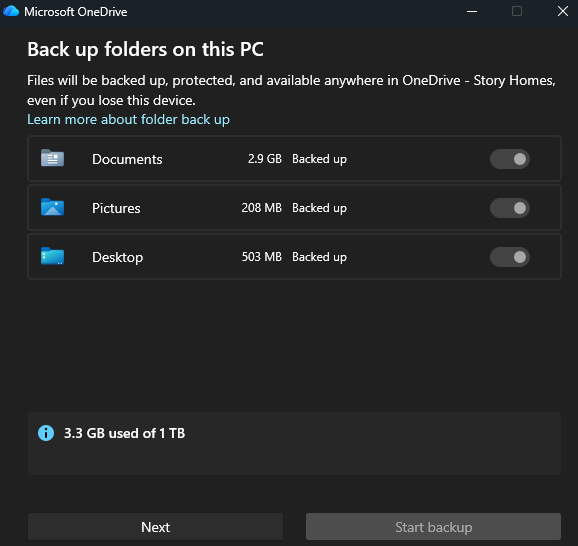
After the above screenshot, you should see the final step to open your OneDrive. Your files will start syncing after this and will be available after a few minutes.
VPN Setup.
To gain access to the H/X drives remotely, you need to use the FortiClient VPN. Before you can connect to the VPN, you need to complete setup. To do this, open the FortiClient app from your list of apps.

You should now have the below on screen.
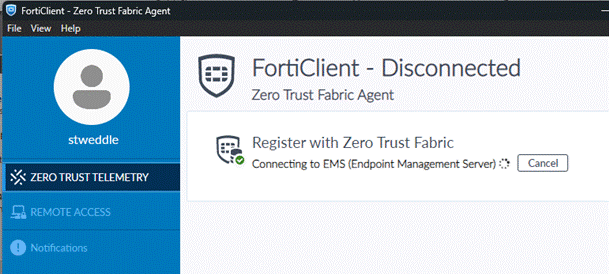
This window will then open your web browser and may prompt you to sign in to your Microsoft account. Once signed in (if you need to) you will get the below page with a notification at the top. Please click on Open which is the final part of the process.
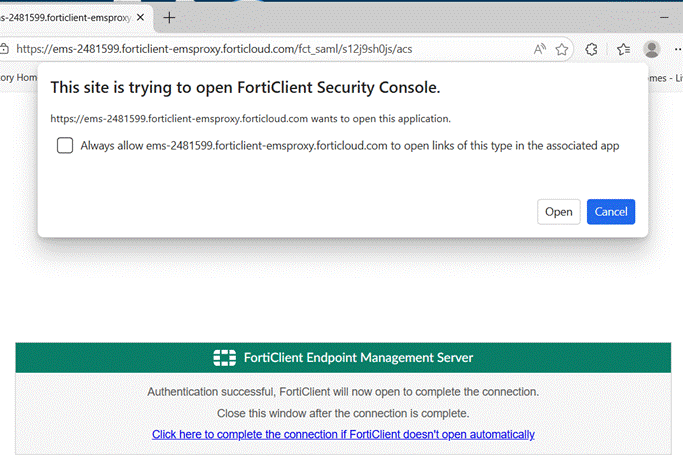
After clicking Open, the FortiClient should say connected after a couple of minutes and look like the below image.
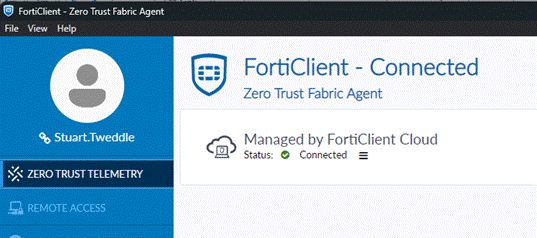
To connect to the VPN to gain access to the H/X drive, open the FortiClient app from your list of apps (if not already open) and you will get the below screen.
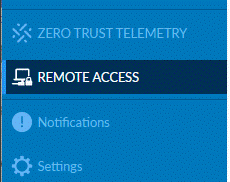
On the left of the FortiClient, click on Remote Access.
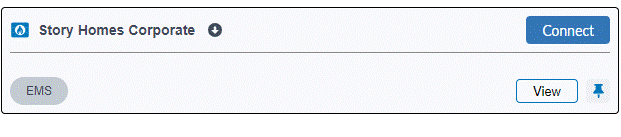
On the right hand side, click on Connect
That’s it! Once you are connected, you should have access to the H/X drive.
After completing setup, we recommend that you restart your laptop and sign in again.
Again, if you get stuck at any point or find that any of your applications are missing, please contact itsupport@storyhomes.co.uk.
Was this article helpful?
That’s Great!
Thank you for your feedback
Sorry! We couldn't be helpful
Thank you for your feedback
Feedback sent
We appreciate your effort and will try to fix the article