If you've been given a Multinetwork SIM card as part of your job role, some work will need to be undertaken on the mobile before it can be used. Below will outline step by step what needs to be done.
NOTE - The Multinetwork SIMs are data-only. This means that you'll still need your o2/vodafone/ee SIM in the primary SIM slot in order to still make calls/texts and retain your current mobile number
Firstly, insert the Multinetwork SIM into SIM slot 2 of your mobile. This will vary model by model, but slot 2 will usually be located next to / opposite slot 1. Pictured below is a Samsung Galaxy A34 SIM tray, where slot 1 is on the left and has an o2 SIM in it, and slot 2 on the right has the Multinetwork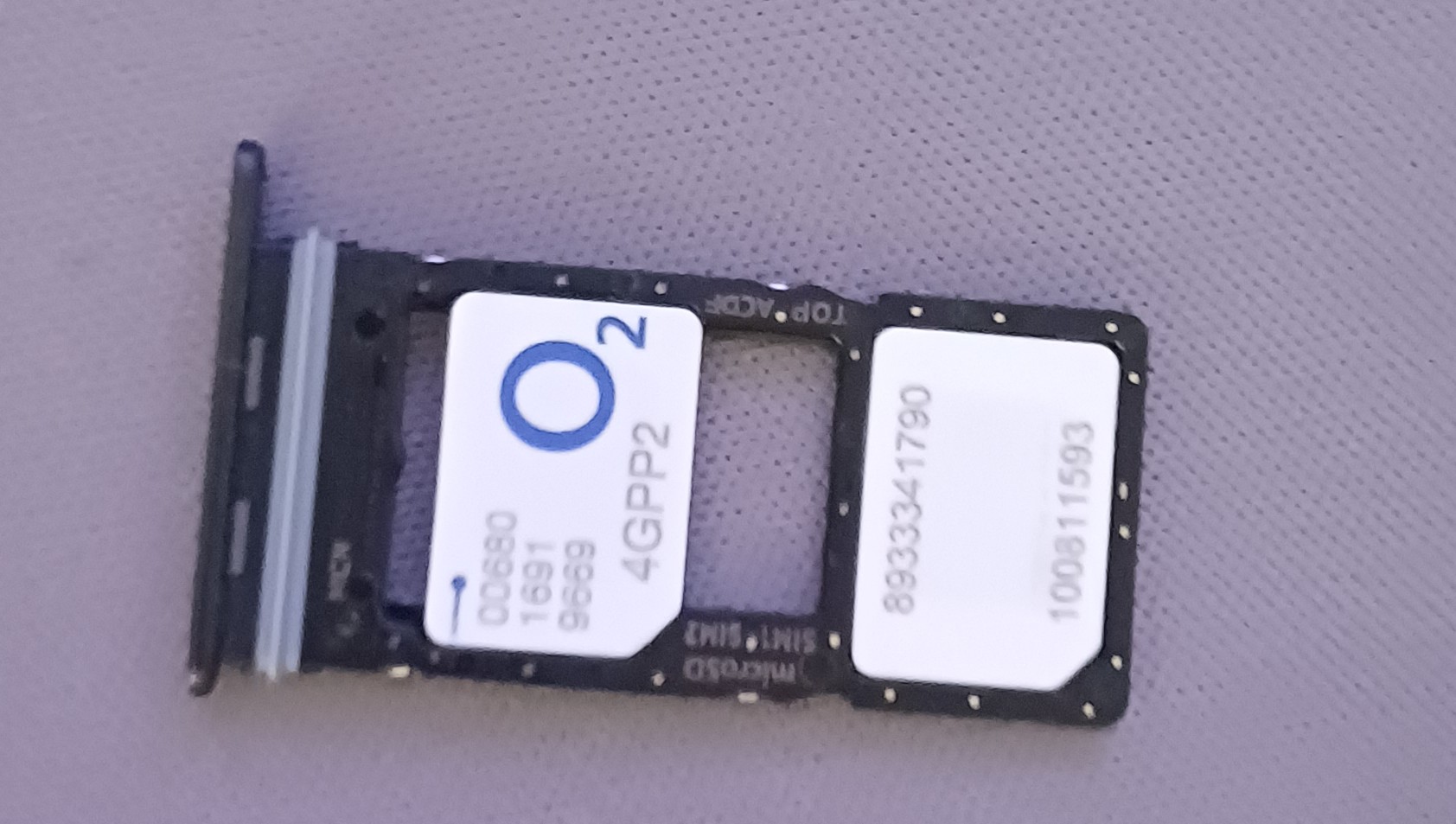
Pop the tray back into the phone. It may take the phone up to 30 seconds to recognise the Multinetwork SIM. On the mobile, head to Settings --> Connections --> SIM Manager. You should see that both SIM cards are now recognised, with the Multinetwork sim called 'eSIMsmart'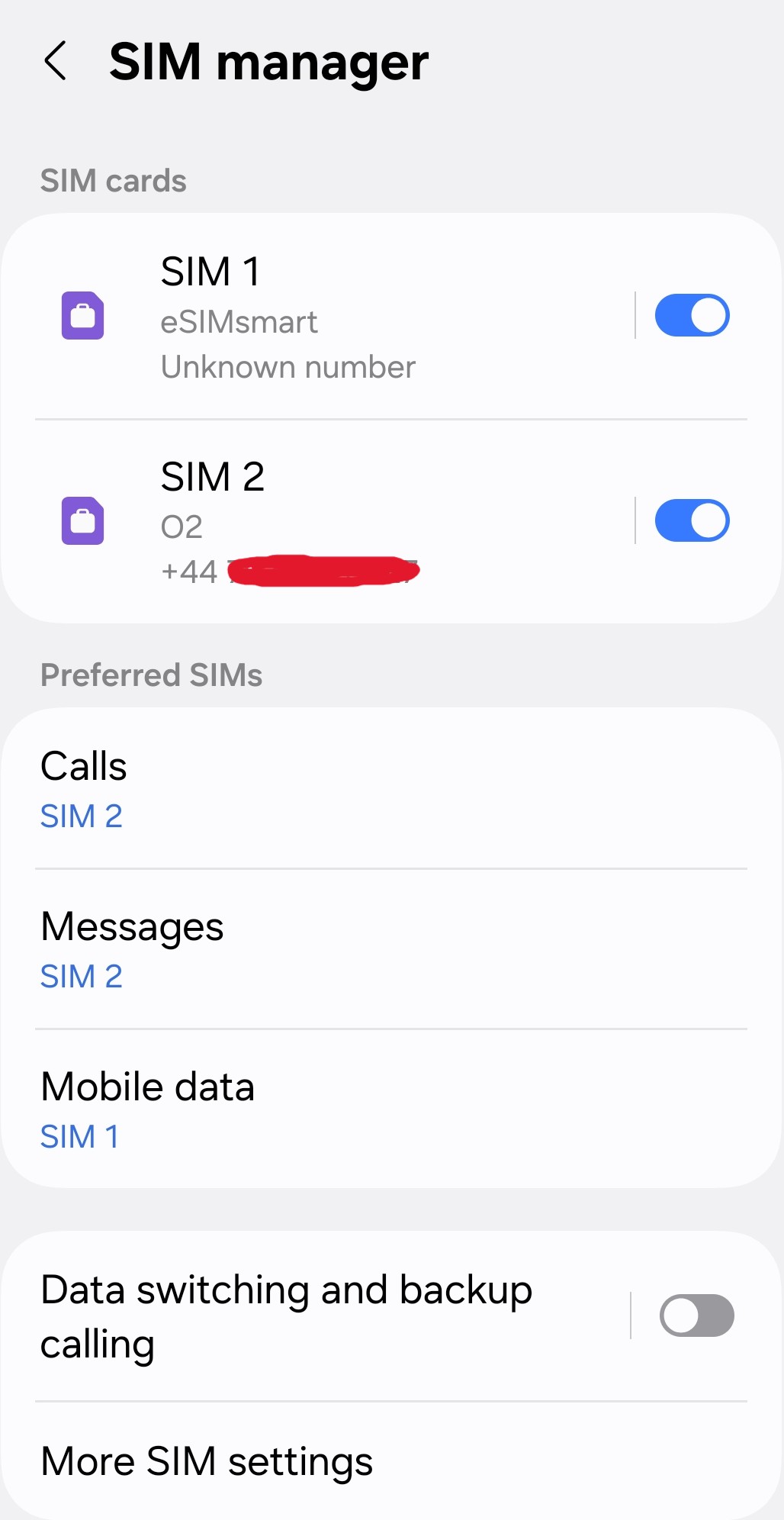
Please make a note of the SIM number as this is how the phone distinguishes the 2 SIM cards. In my example, the Multinetwork SIM is SIM 1 but it can be any number
Under the 'Preferred SIMs' menu, make sure that both Calls and Messages are allocated to the normal SIM and Mobile data is allocated to the Multinetwork. In the example, since SIM 2 is the normal o2 SIM this is used for Calls & Messages and the Multinetwork for Mobile data
Exit from the SIM manager settings and go to Settings --> Connections --> Mobile networks. In the menu for 'Data roaming for SIM 1/2' set this to 'All networks'
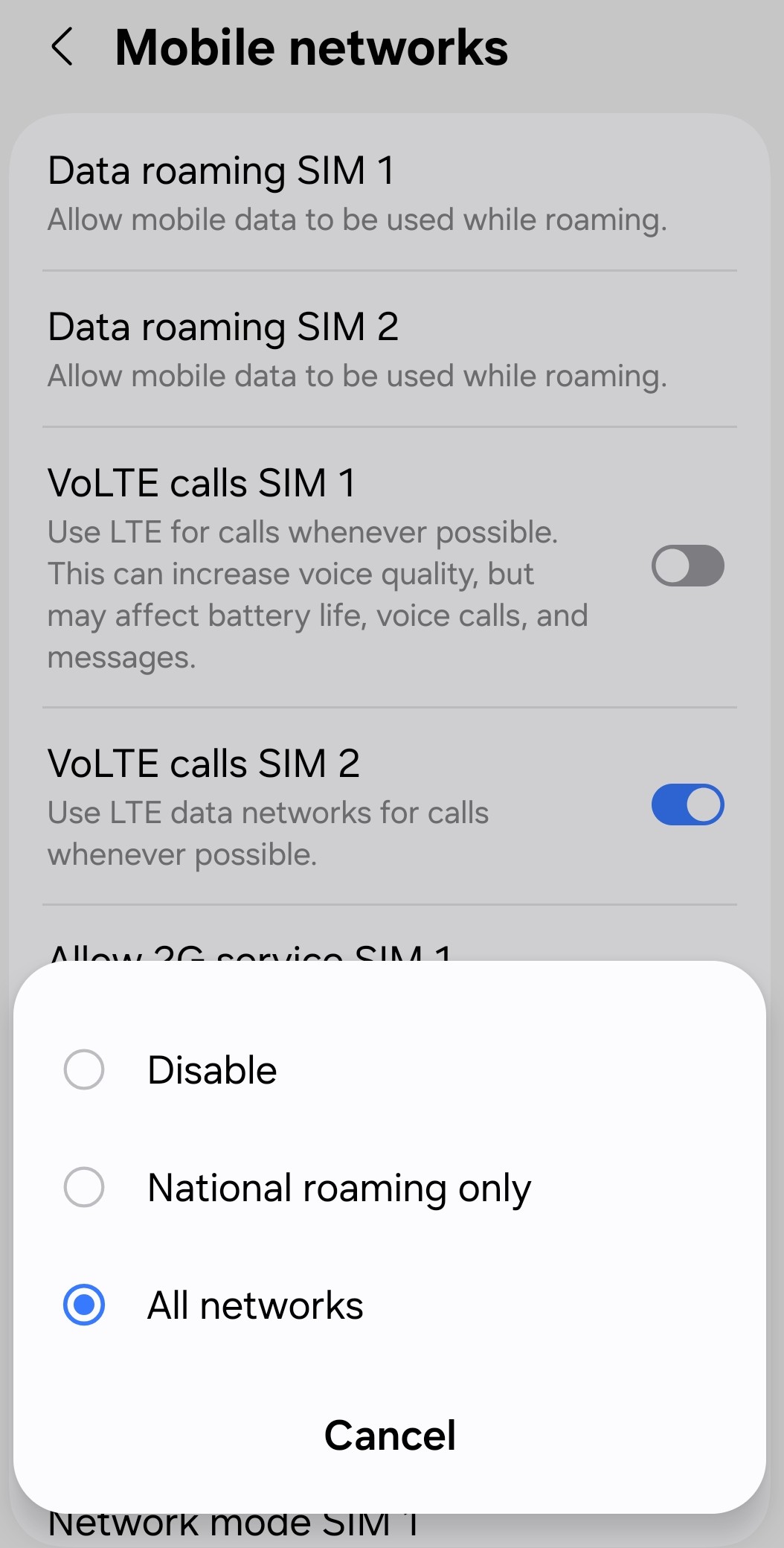
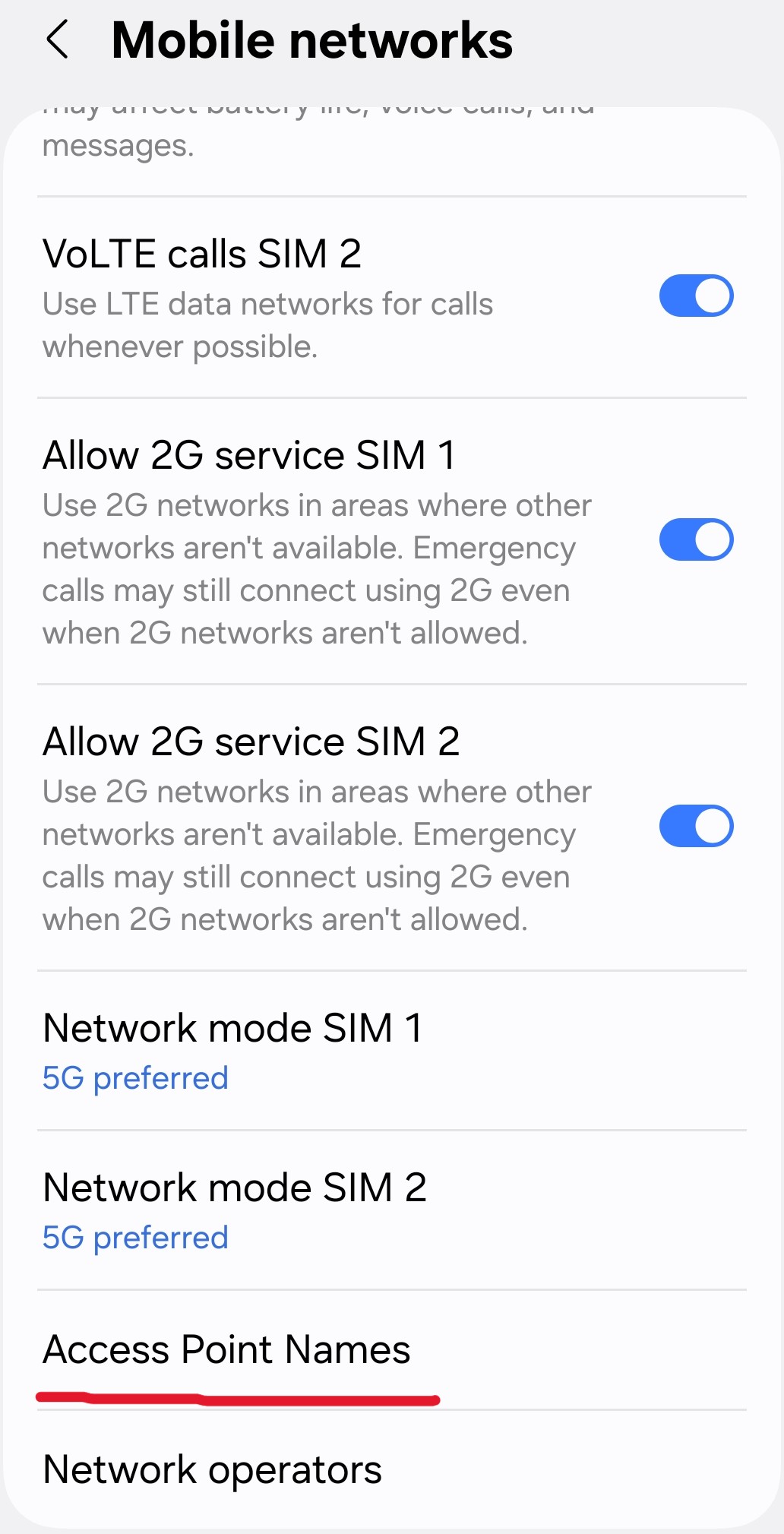
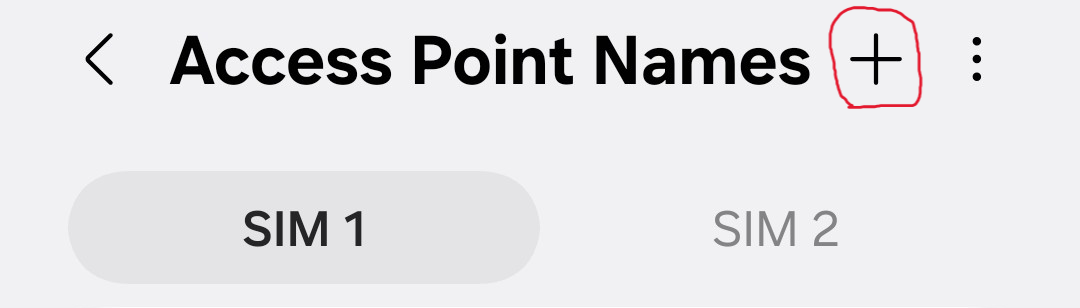
Scroll down the Mobile networks menu to find the 'Access Point Names' section. Under the menu for either SIM1/2 click the plus icon to add a new Access Point Name (APN)
Please enter the below information exactly as it is typed. Some of the fields may already be autopopulated:
Name - m2m
APN - m2m
MCC - 901
MNC - 31
Authnetication type - PAP or CHAP
APN type - default,supl,tethering
APN protocol - IPv4
APN roaming protocol - IPv4
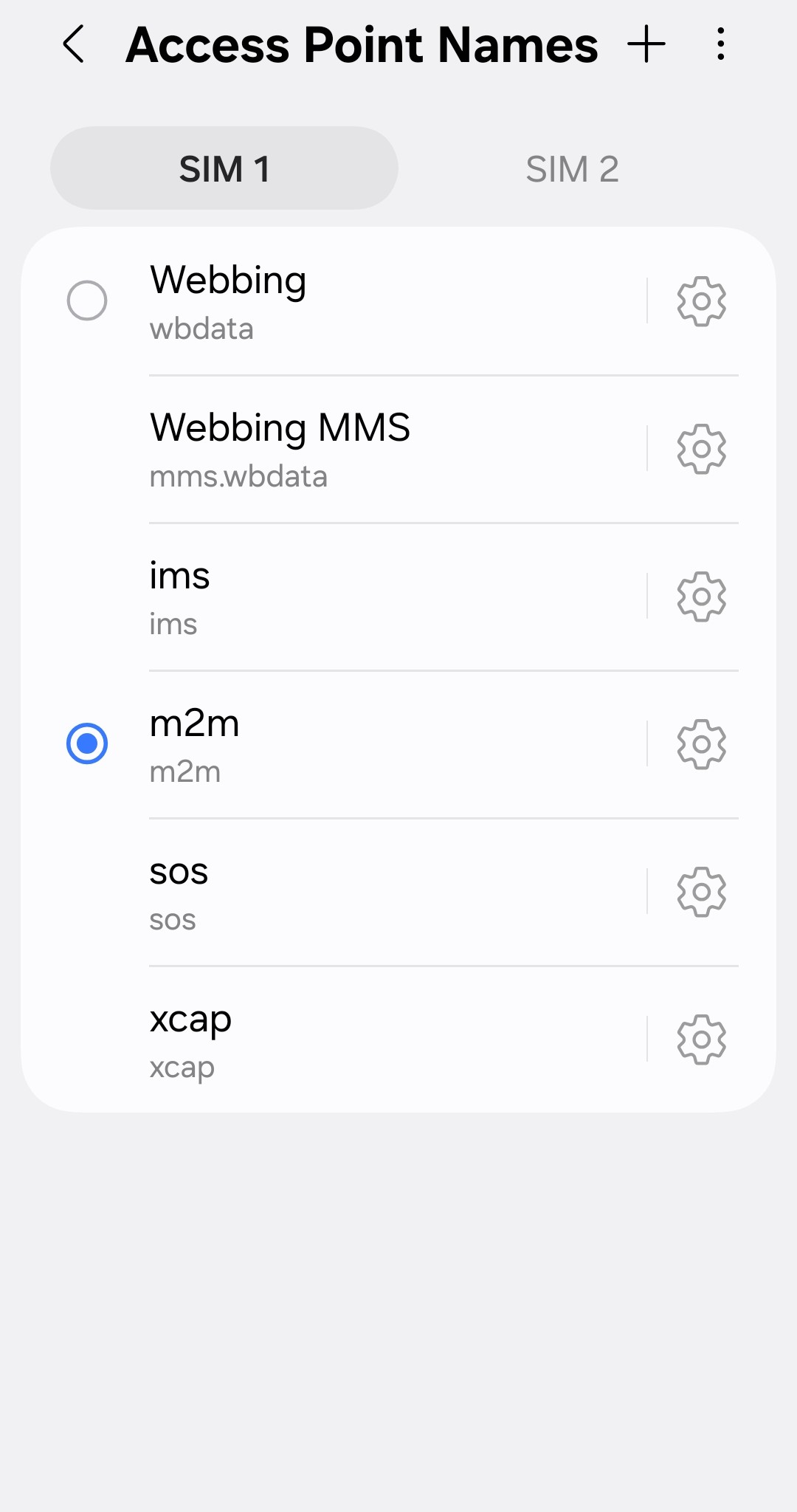
Press save once done. Press on the newly created 'm2m' APN once again to make this active. If active, you will see a blue circle next to the new APN name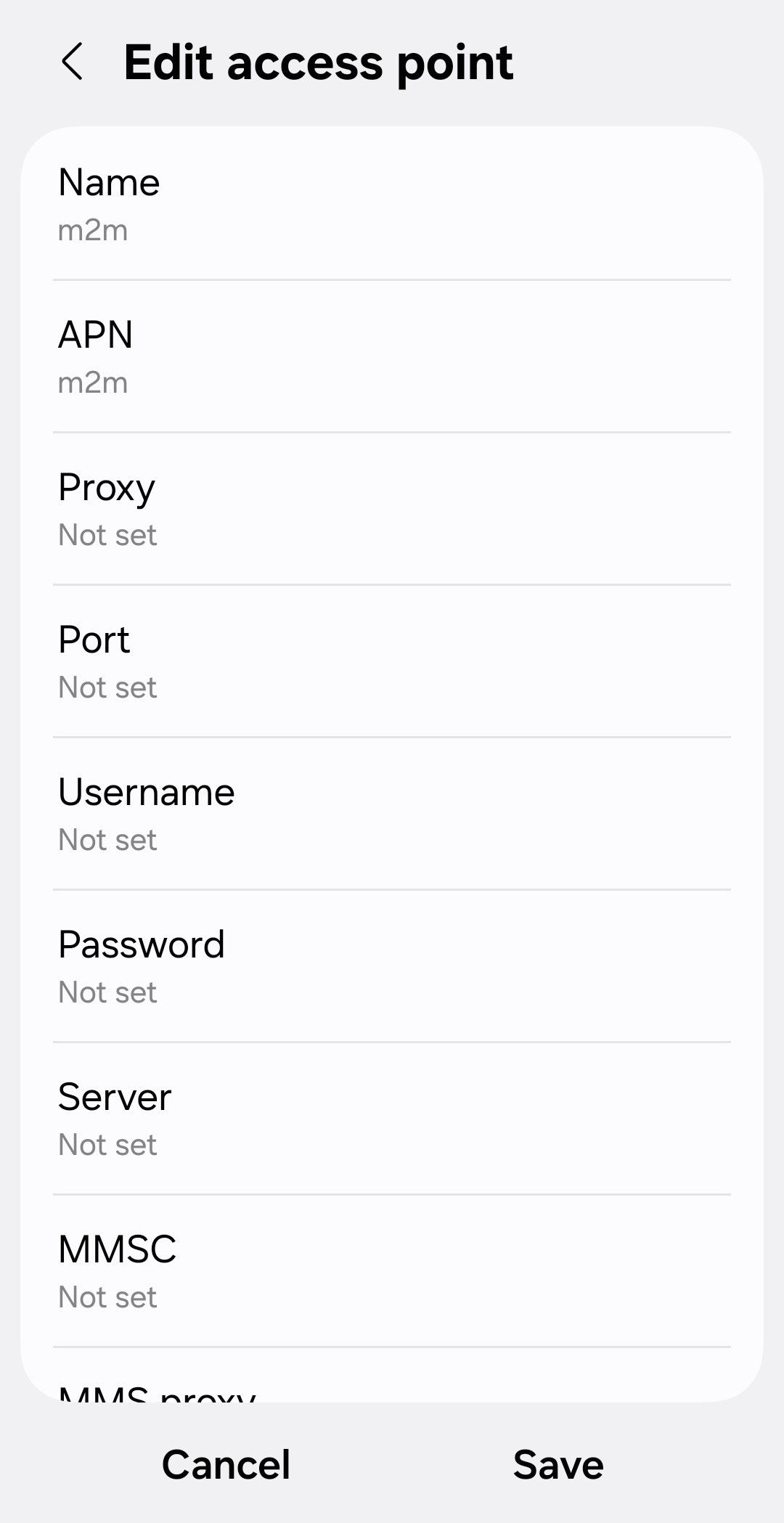
Once this is completed, the Multinetwork SIM should be ready to use. Please contact IT support in the usual manner if not
Was this article helpful?
That’s Great!
Thank you for your feedback
Sorry! We couldn't be helpful
Thank you for your feedback
Feedback sent
We appreciate your effort and will try to fix the article