This article is for when the Teams Meeting add-in has disappeared when trying to include a Teams meeting within an Outlook appointment/meeting
The most common reason behind this is that the Teams Add-In caused Outlook to crash and so Outlook has either removed or disabled it.
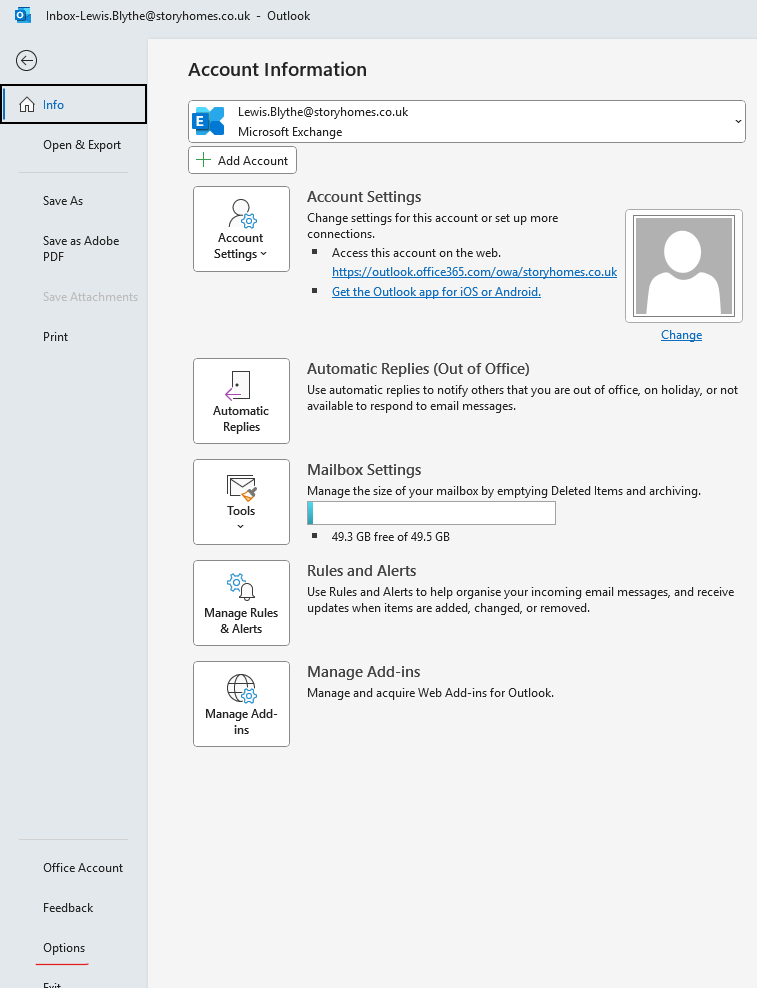
To check this, within Outlook navigate to File --> Options --> Add-ins
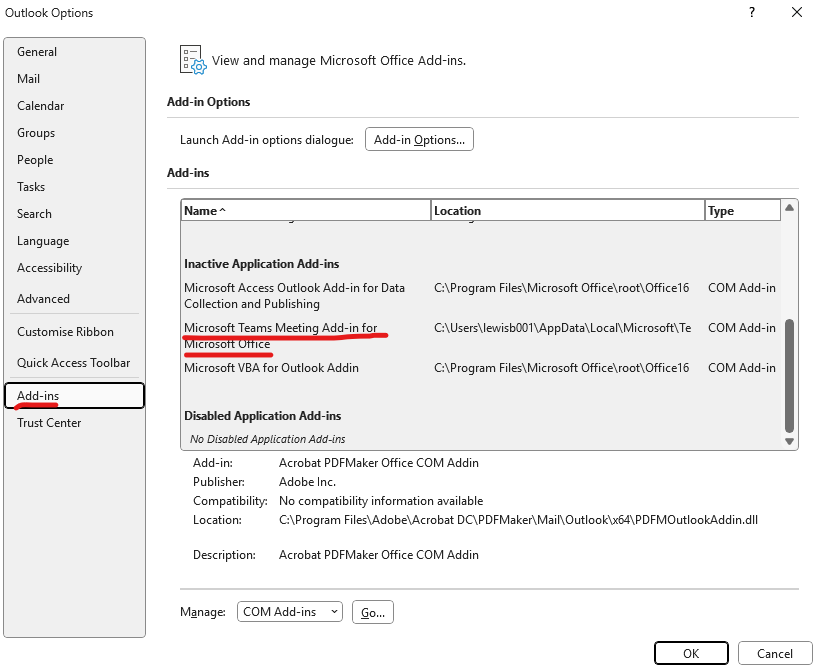
You'll likely either see the 'Microsoft Teams Meeting Add-in for Microsoft Office' in the list of Inactive or Disabled add-ins
If the Teams Meeting Add-in is in the Disabled list, change the bottom 'Manage' dropdown menu to Disabled Items & then click Go...

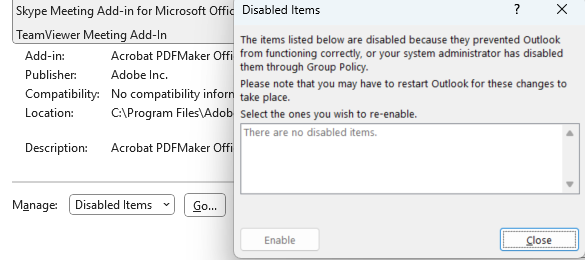
You would then see the Teams add-in in this menu. Click on it, click Enable and then Close
If the Teams Meeting Add-in is in the inactive list, keep COM Add-ins selected in the bottom 'Manage' dropdown menu and then click Go...
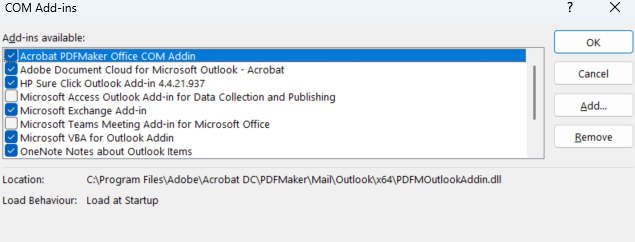
Within the tick menu list that appears you would then have the Microsoft Teams Add-in unticked like the above screenshot. Simply tick this and press OK
At this point you may need to restart Outlook for this to take effect. The Teams meeting options should then appear

Was this article helpful?
That’s Great!
Thank you for your feedback
Sorry! We couldn't be helpful
Thank you for your feedback
Feedback sent
We appreciate your effort and will try to fix the article